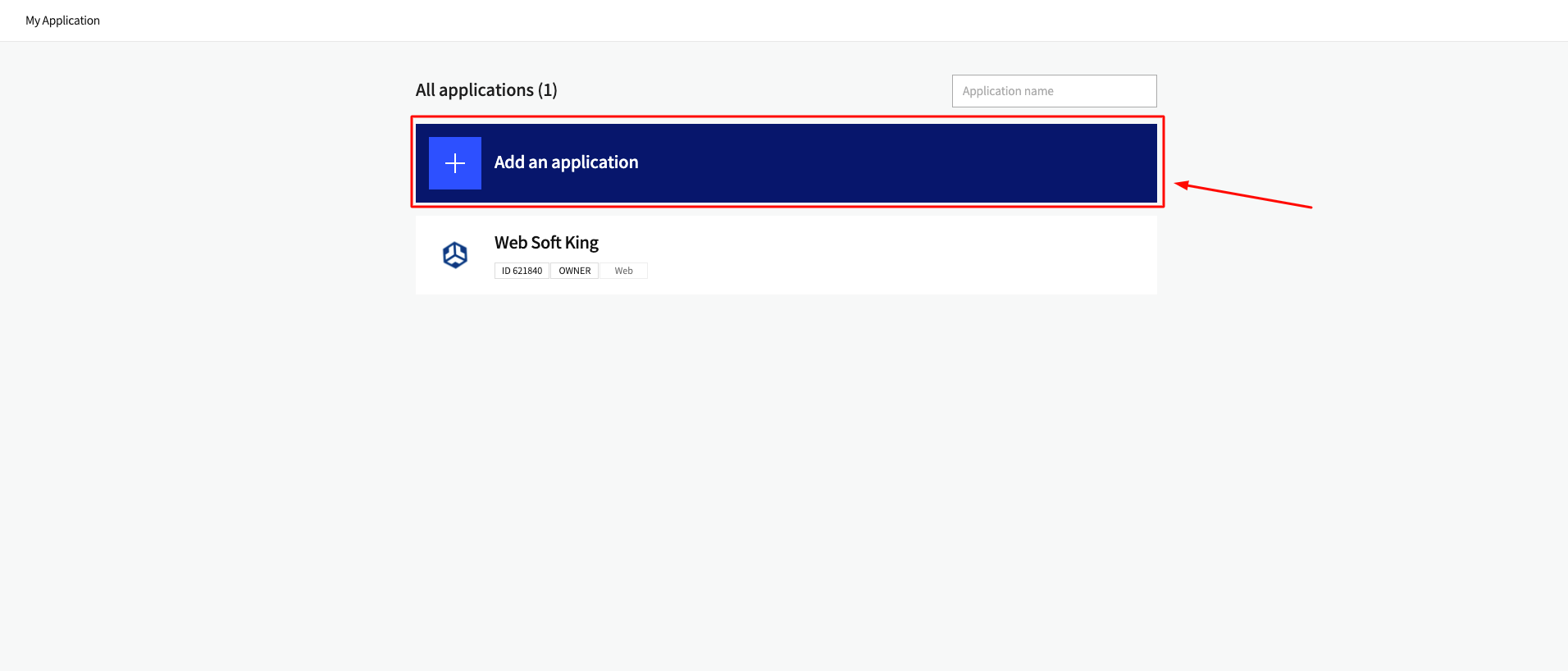
Go to the Kakao API Console and click Add New Application.
Kakao Login Setup Guide
Learn how to enable Kakao Login in the Dream Social Login app.
📋
Before You Begin
You need a Kakao Developers account. If you don't have one yet, sign up at the Kakao Developers Center first.
Overview
Kakao Login allows Korean customers to sign in quickly with their Kakao account. All required information (Client ID, Client Secret, Redirect URI) is issued at the Kakao Developers Center and entered into the app.
Enter Kakao Credentials
In the Dream Social Login app, go to Settings → API Keys → Kakao and enter the following:
- Client ID (API Key) — REST API key from Kakao Developers
- Client Secret — Client Secret generated at Kakao Developers
- Authorized redirect URIs —
https://shopidreamapps.com/kakao/auth
The Redirect URI must exactly match
https://shopidreamapps.com/kakao/auth.Kakao Developers Center Setup Steps
1
2
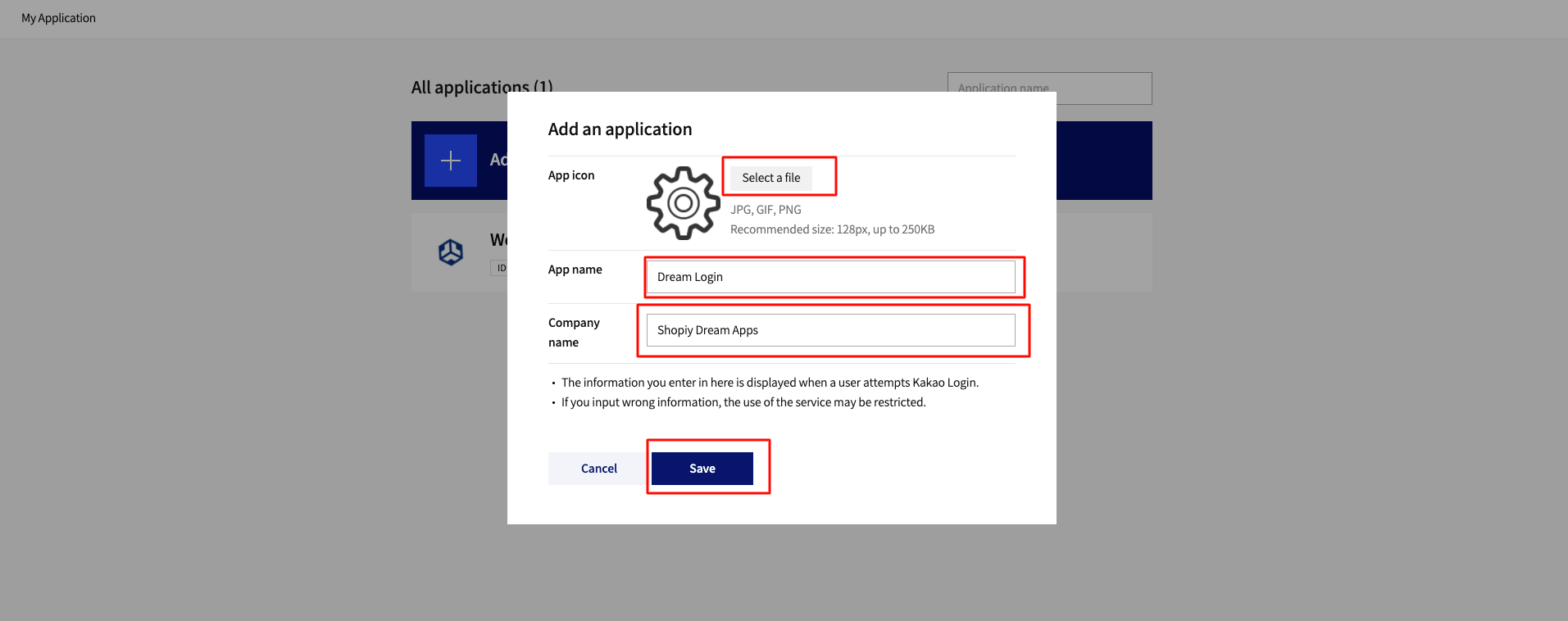
Fill out the application form.
- Upload your app icon
- App Name: Enter your desired name
- Company Name: Enter your company or brand name, then Save
3
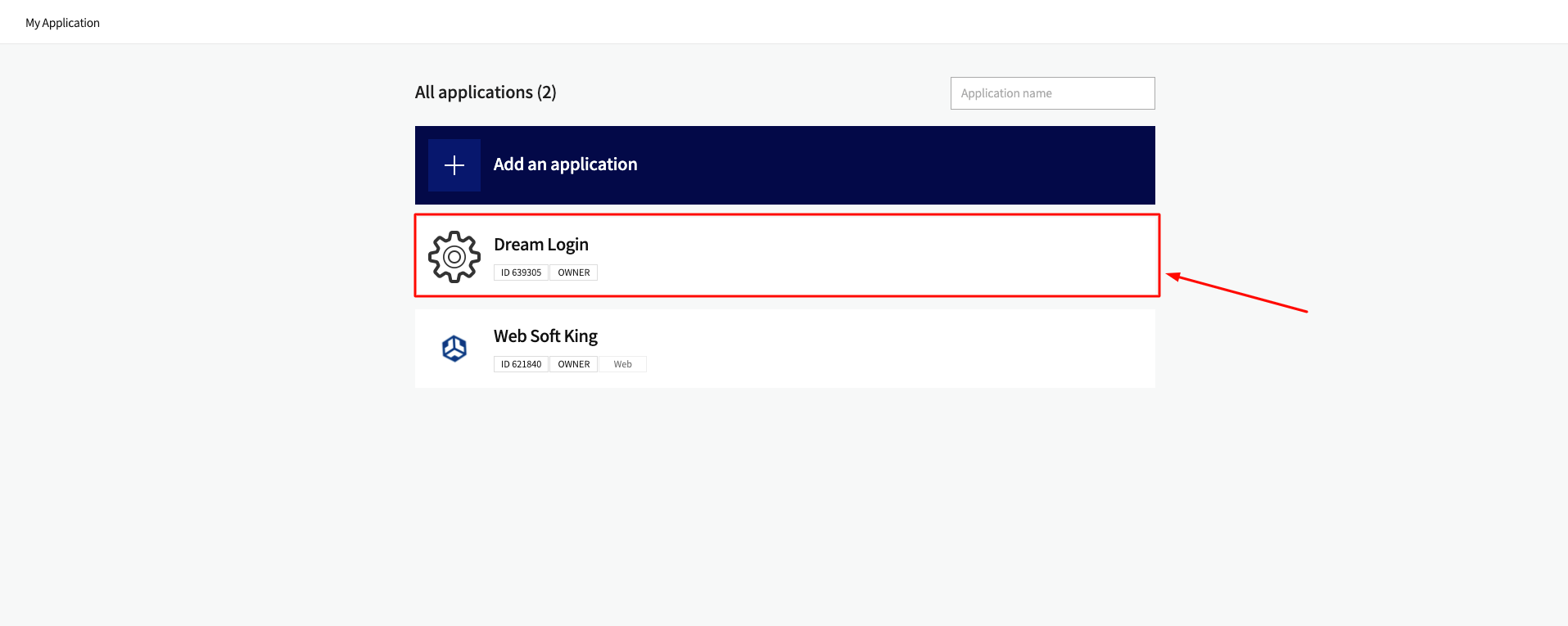
Click on your new app to open the configuration page.
4
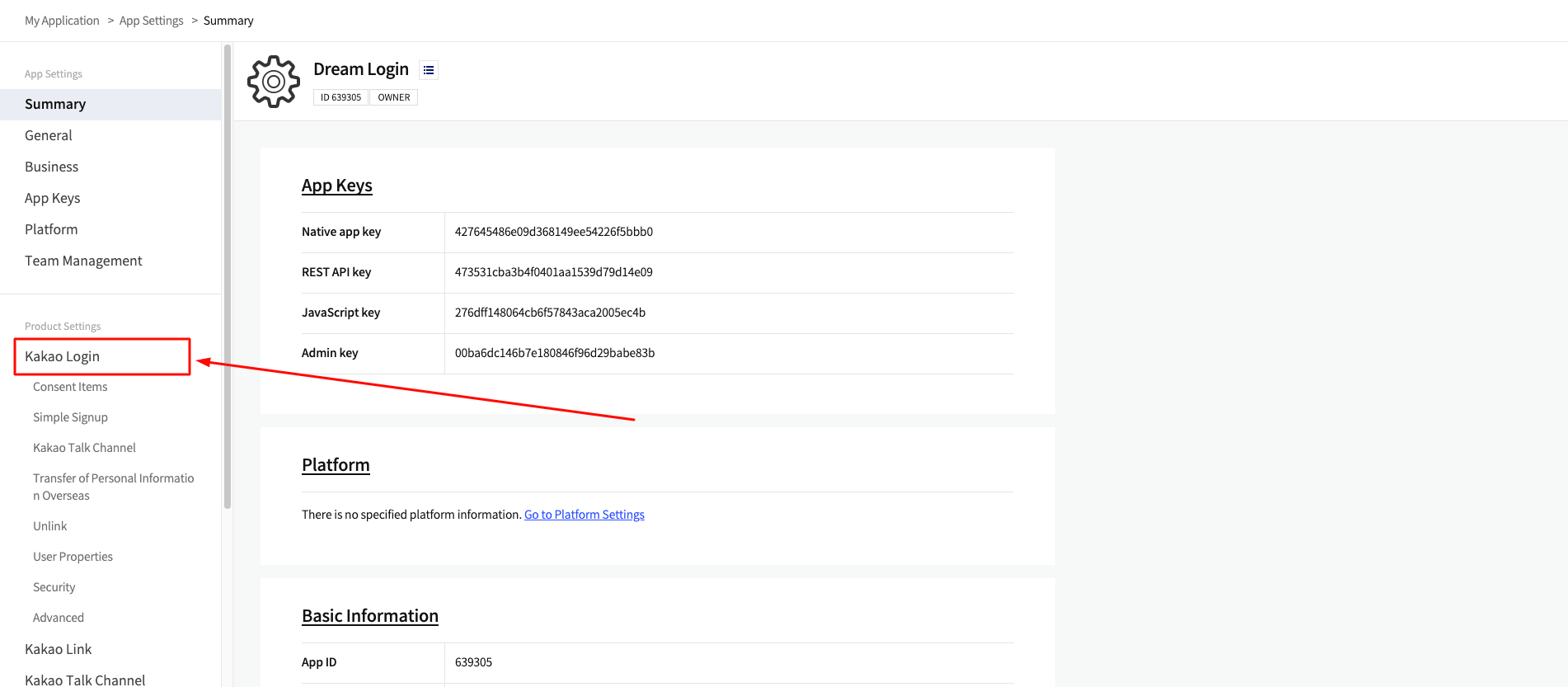
Click the Kakao Login option in the left menu.
5
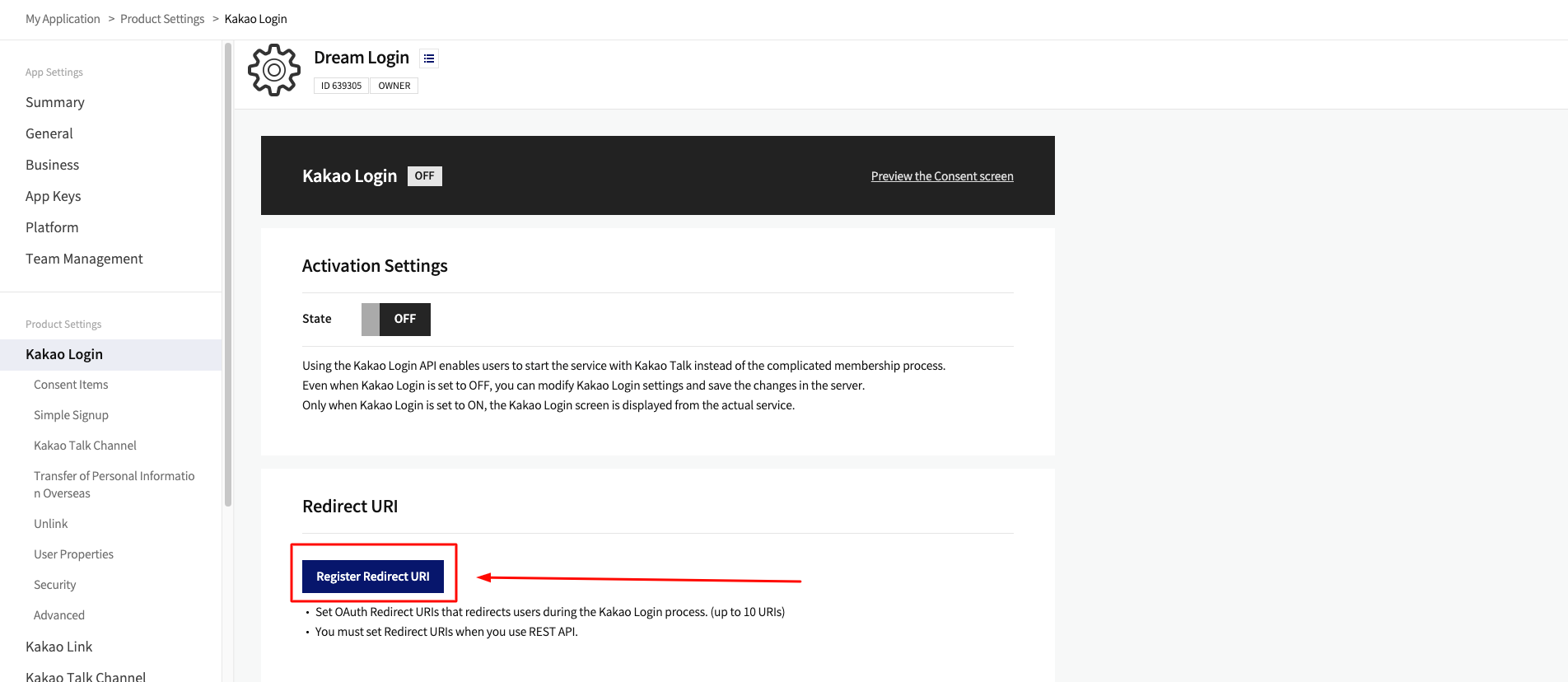
Click the Register Redirect URI button.
6
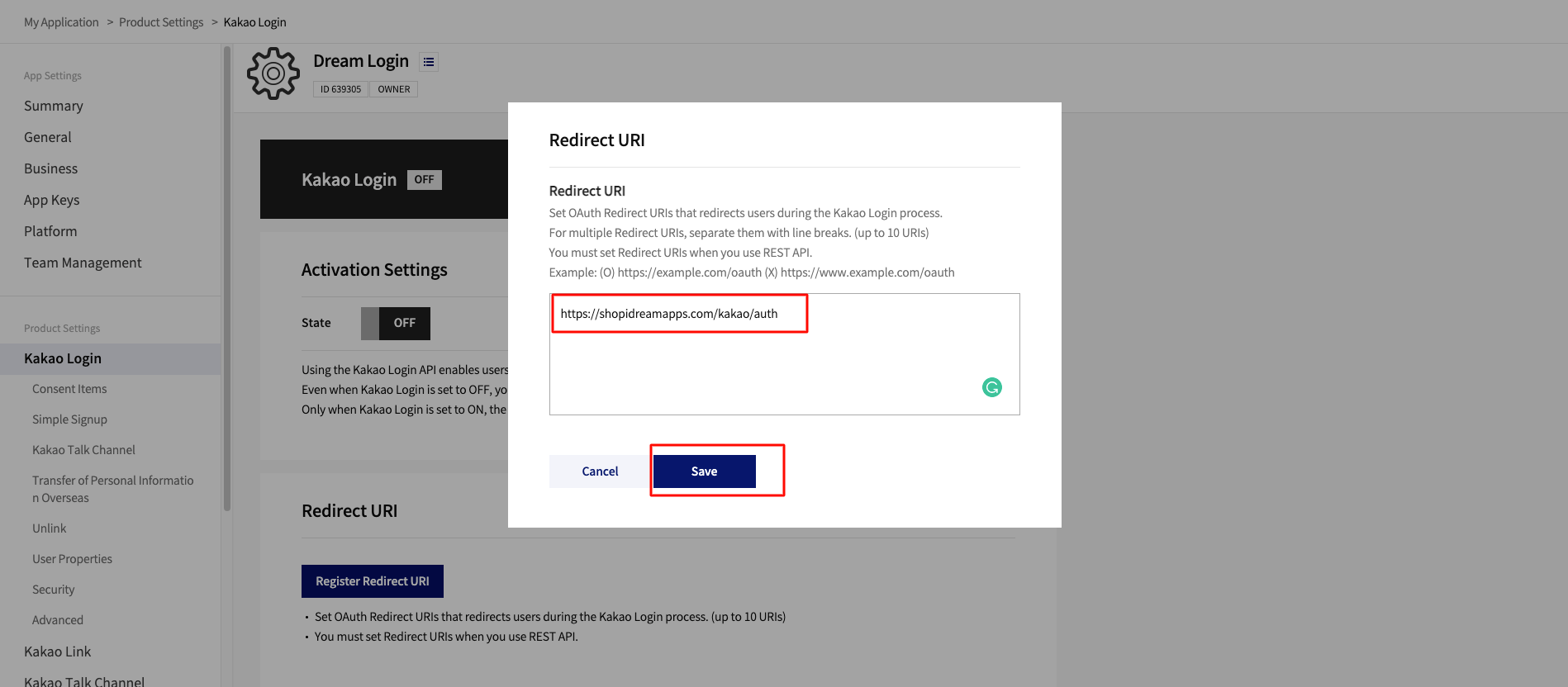
Enter the Redirect URI and save.
https://shopidreamapps.com/kakao/auth
7
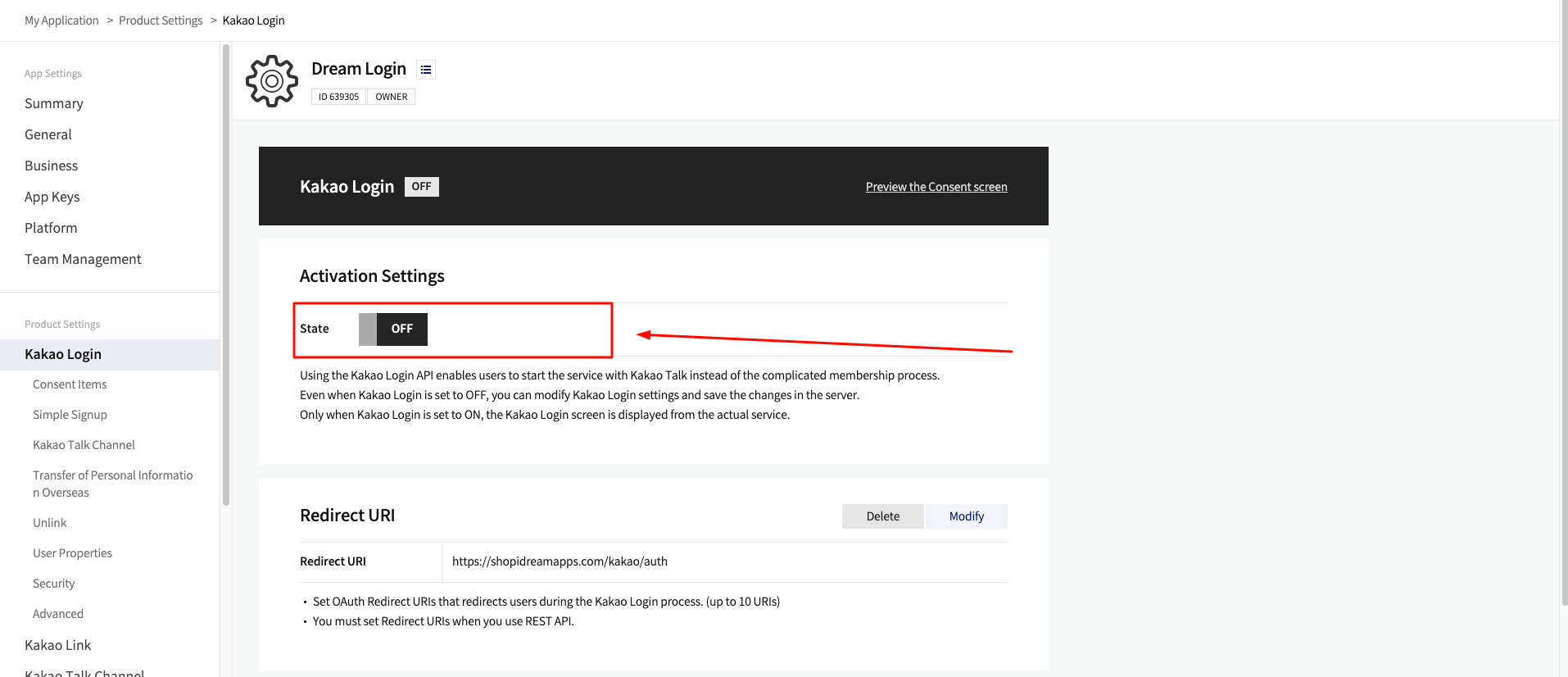
Enable the toggle in Activation Settings.
8
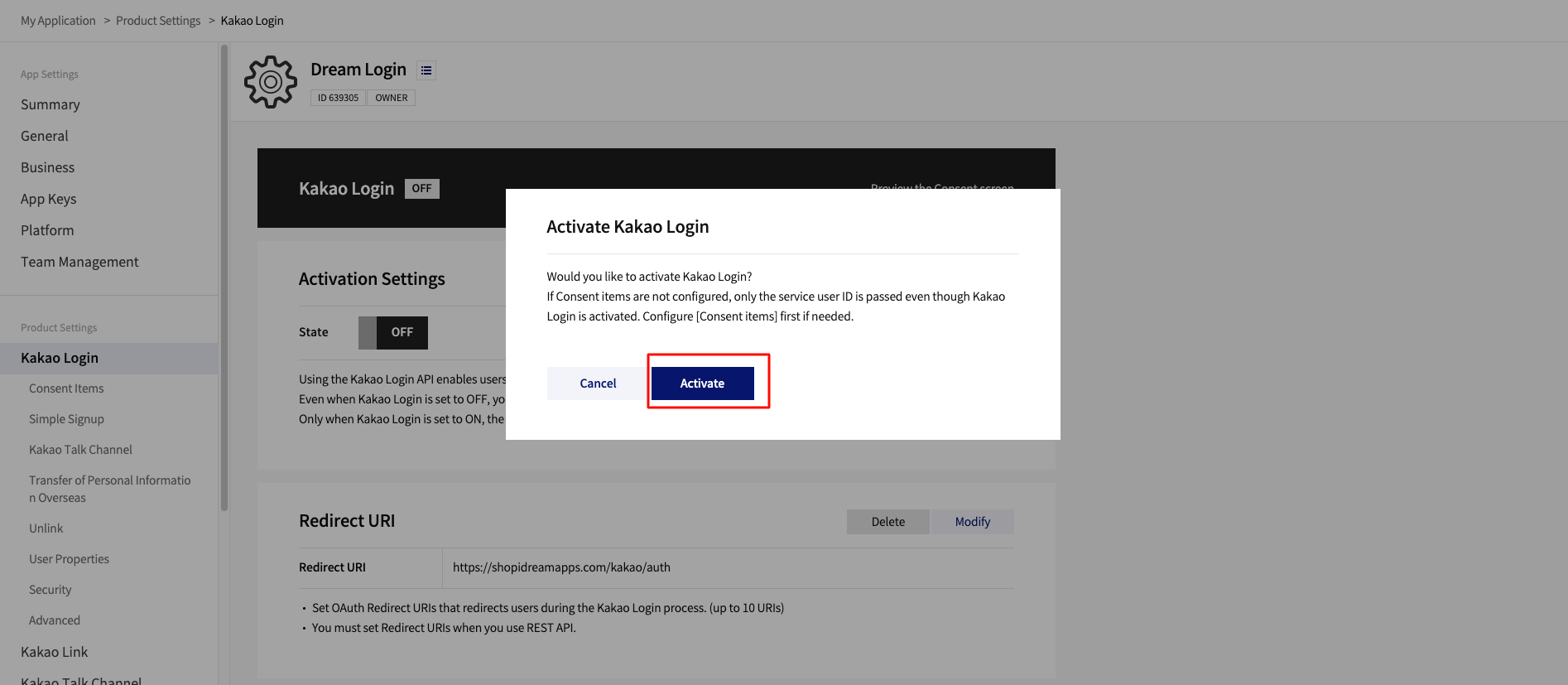
Confirm activation in the popup by clicking Activate.
9
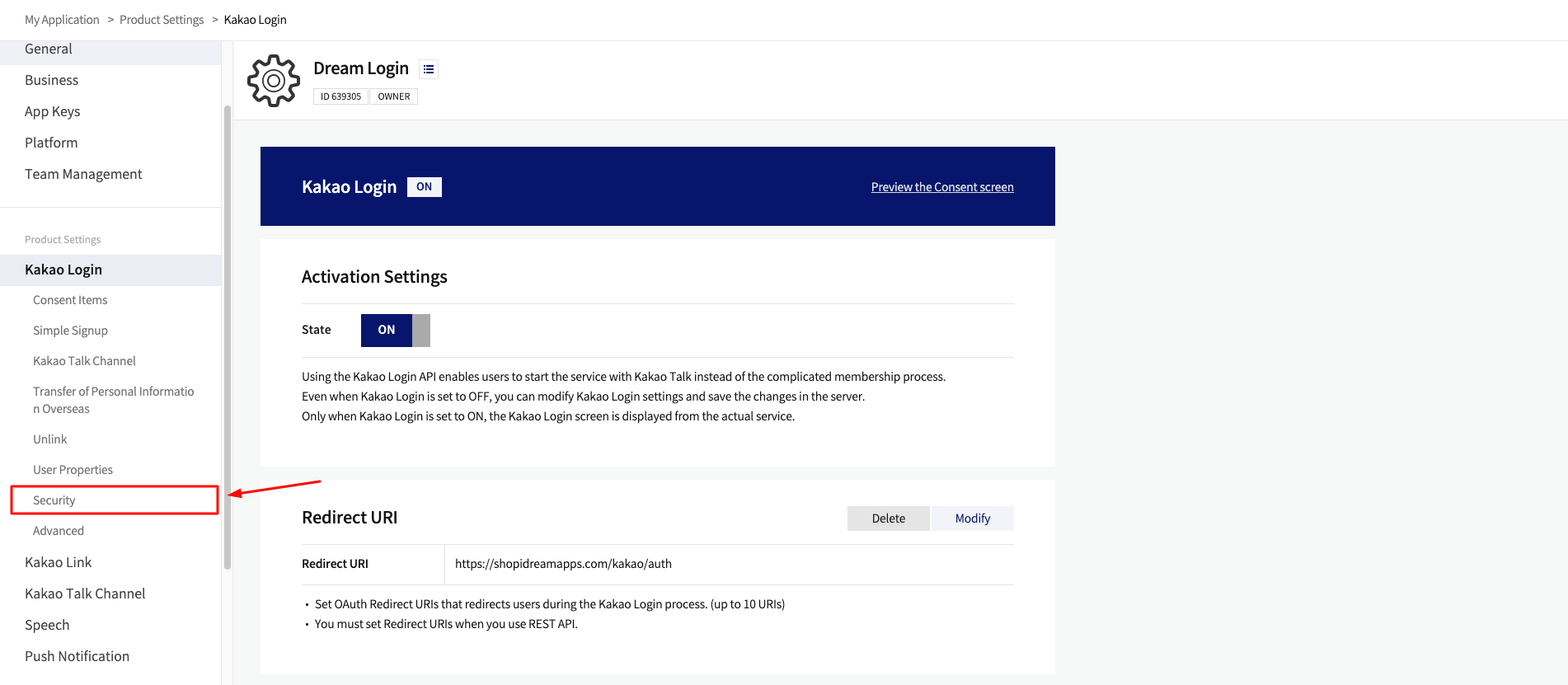
Go to Kakao Login → Security in the left menu.
10
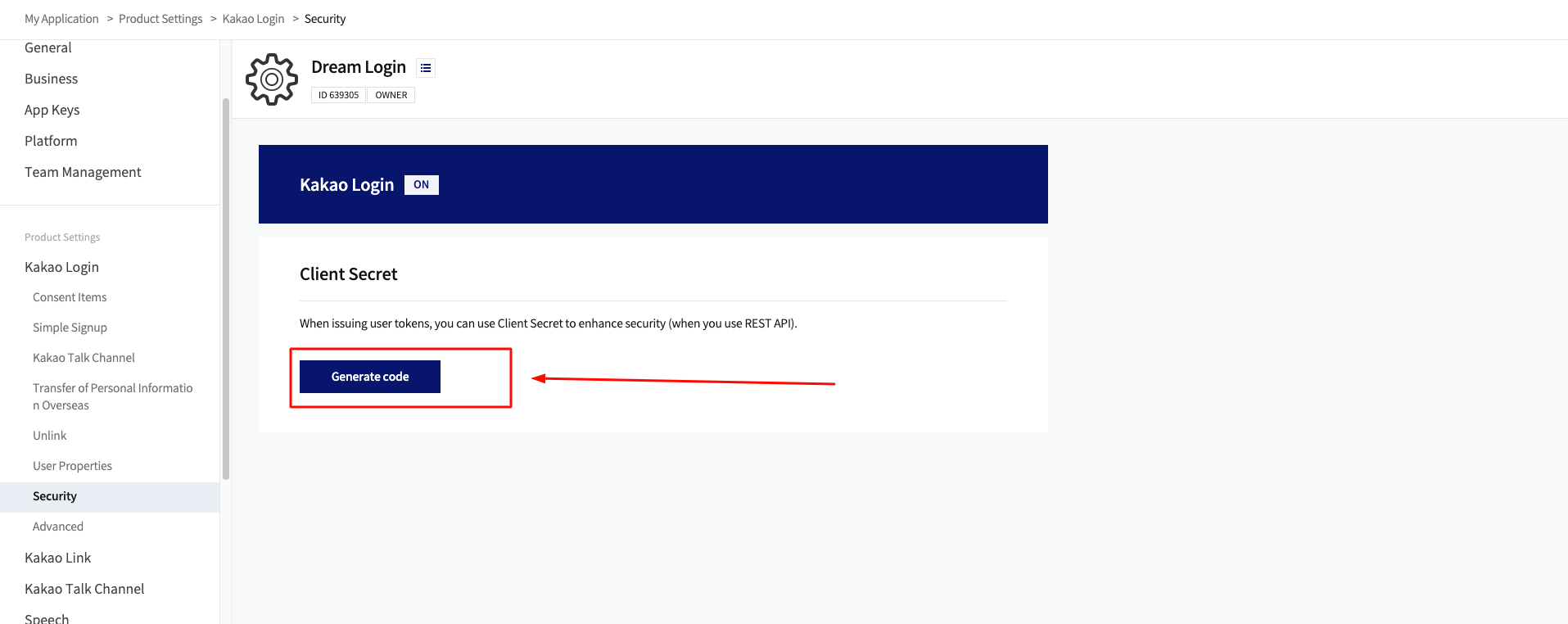
Click the Generate Code button.
11
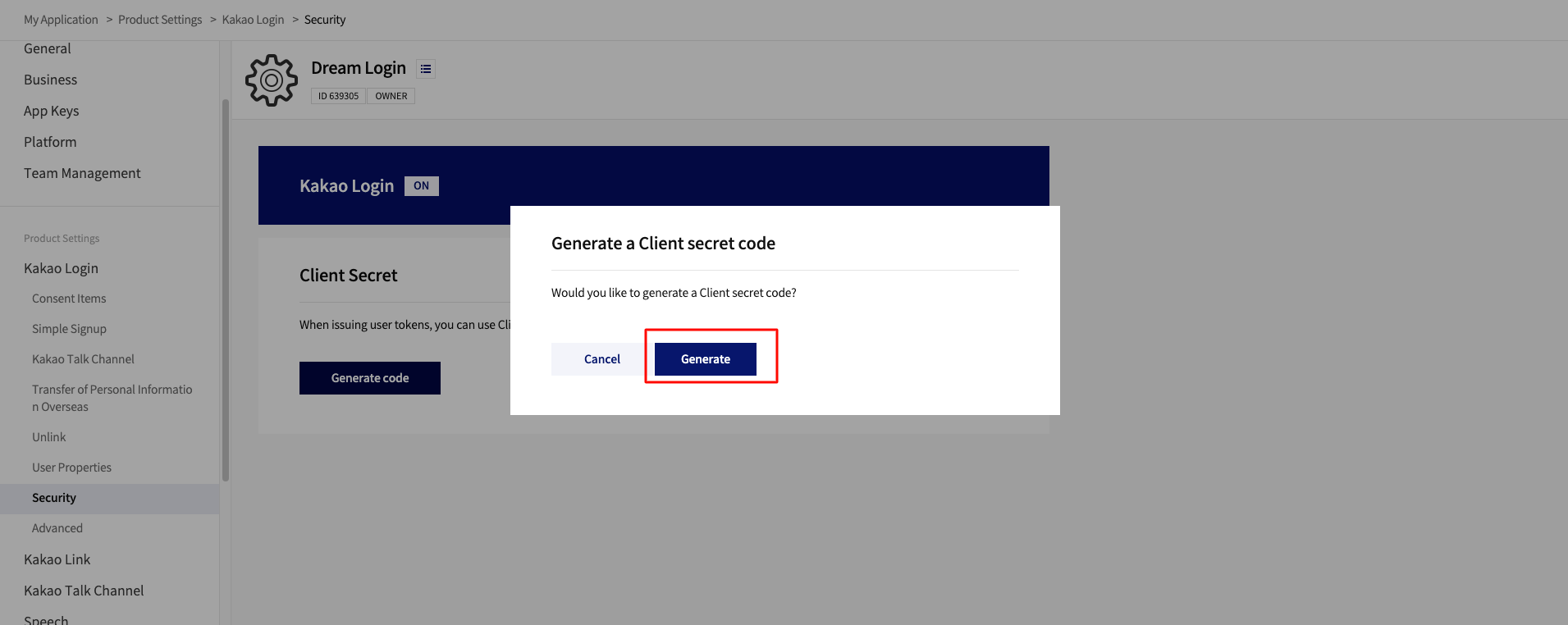
Click Generate in the Client Secret generation popup.
12
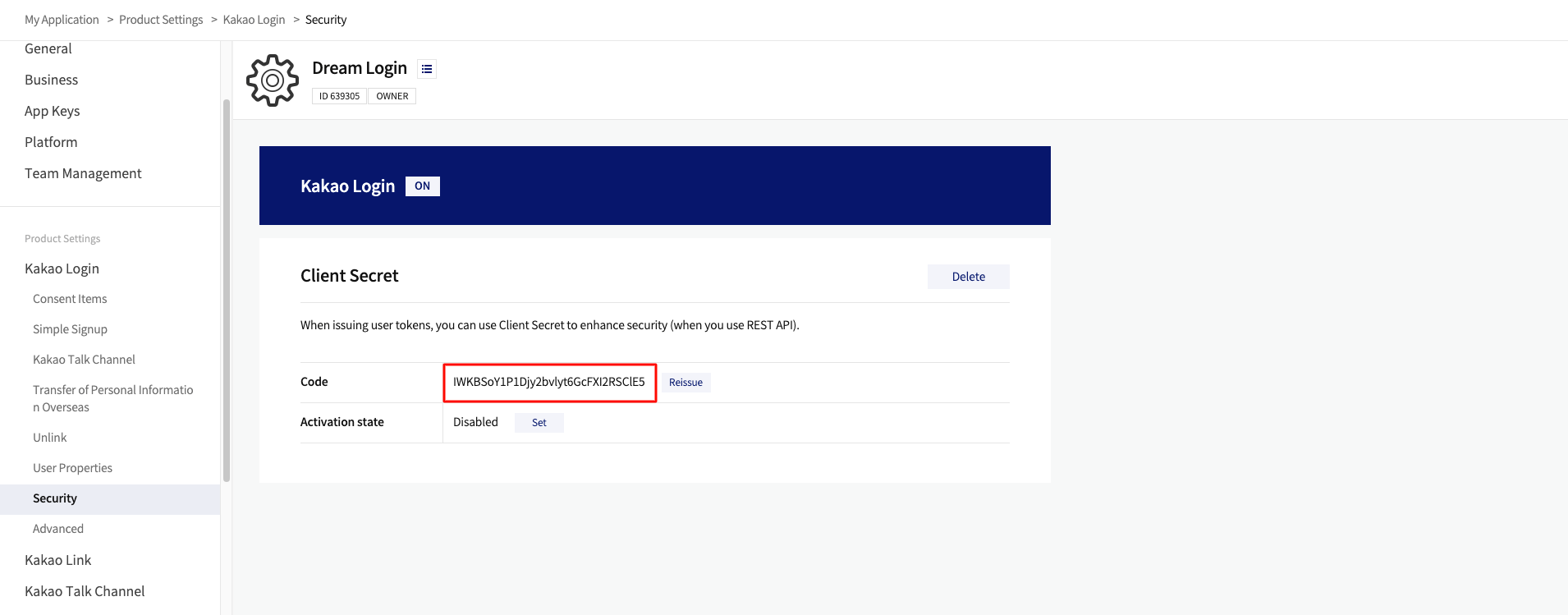
Copy the Client Secret code.
13
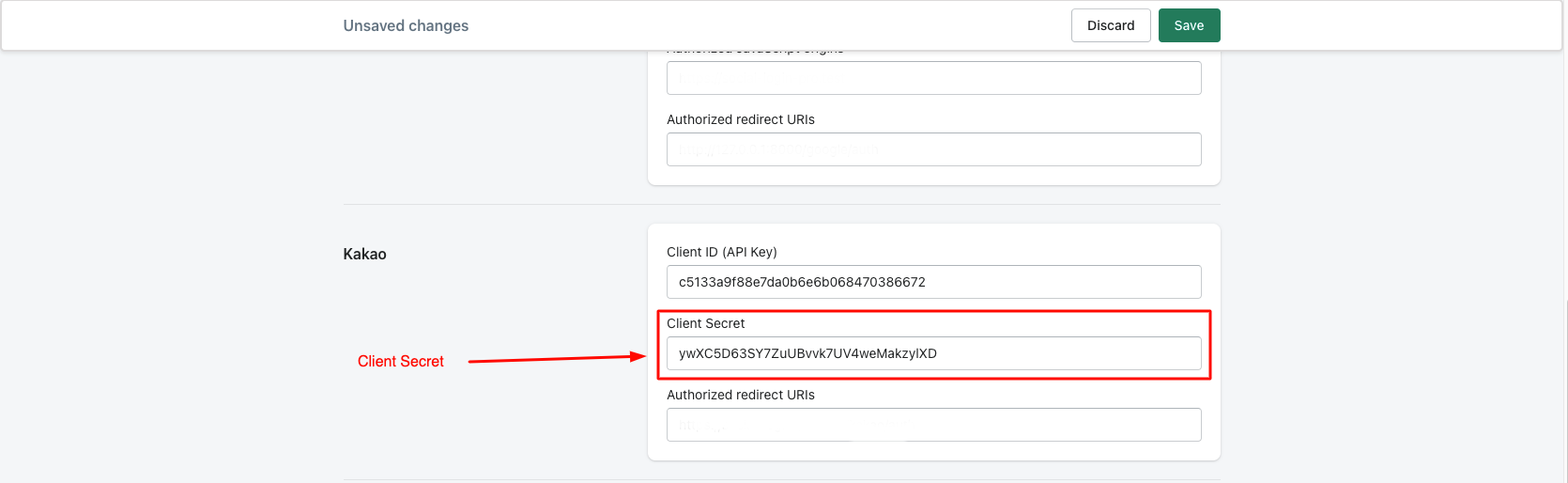
Paste the Client Secret into Dream Social Login → API Keys → Kakao → Client Secret.
14
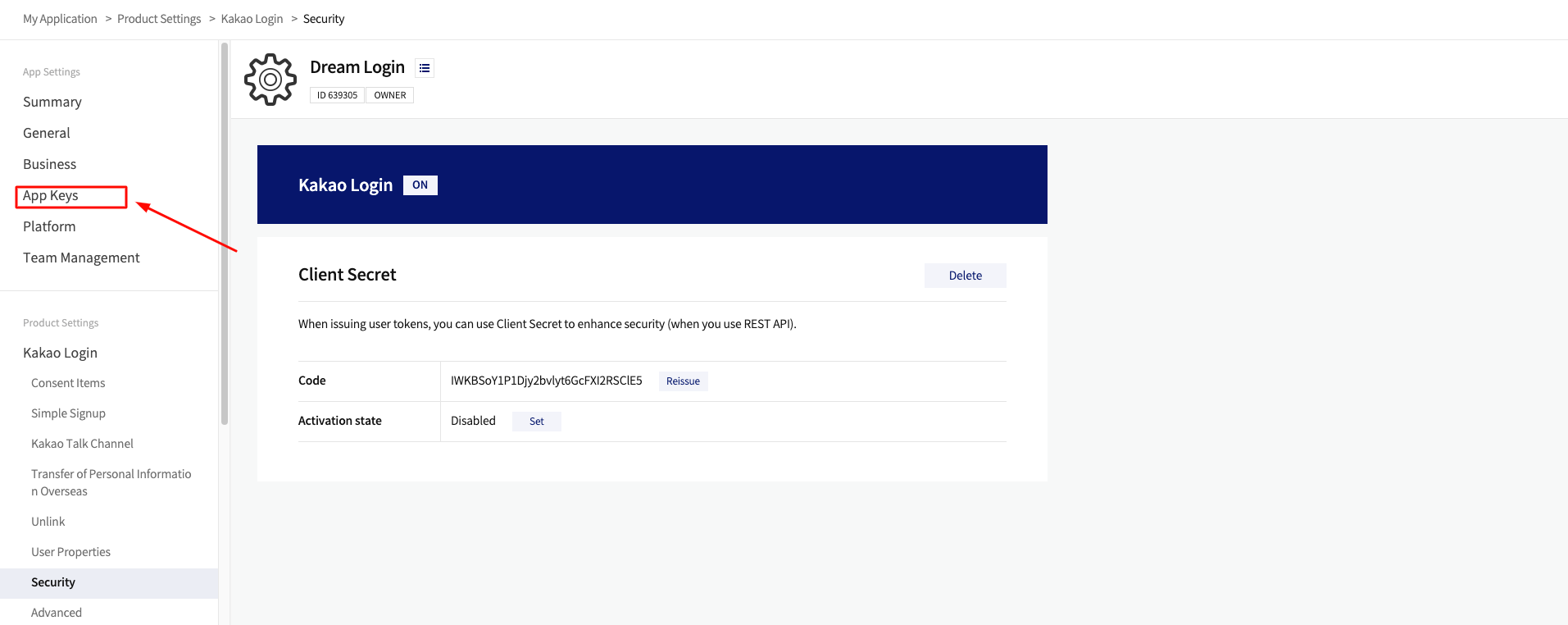
Go to App Keys in the left menu.
15
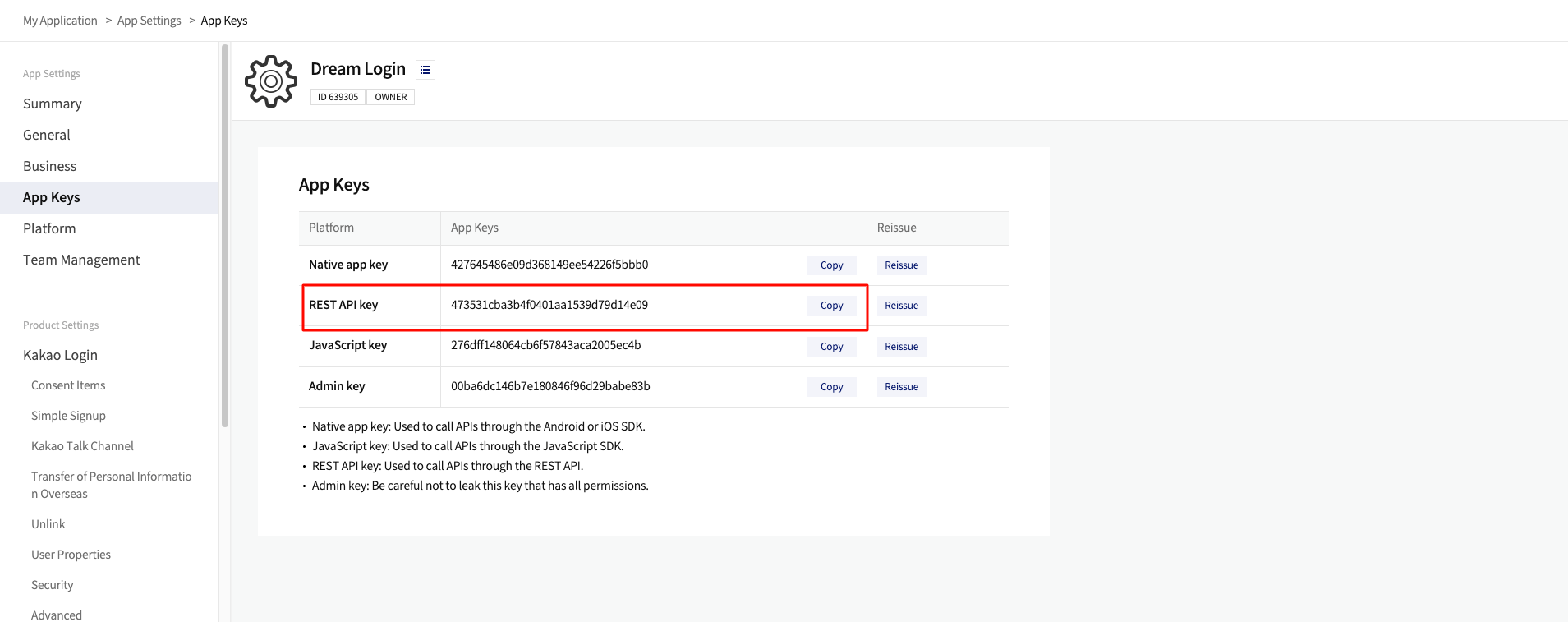
Copy the REST API key.
16
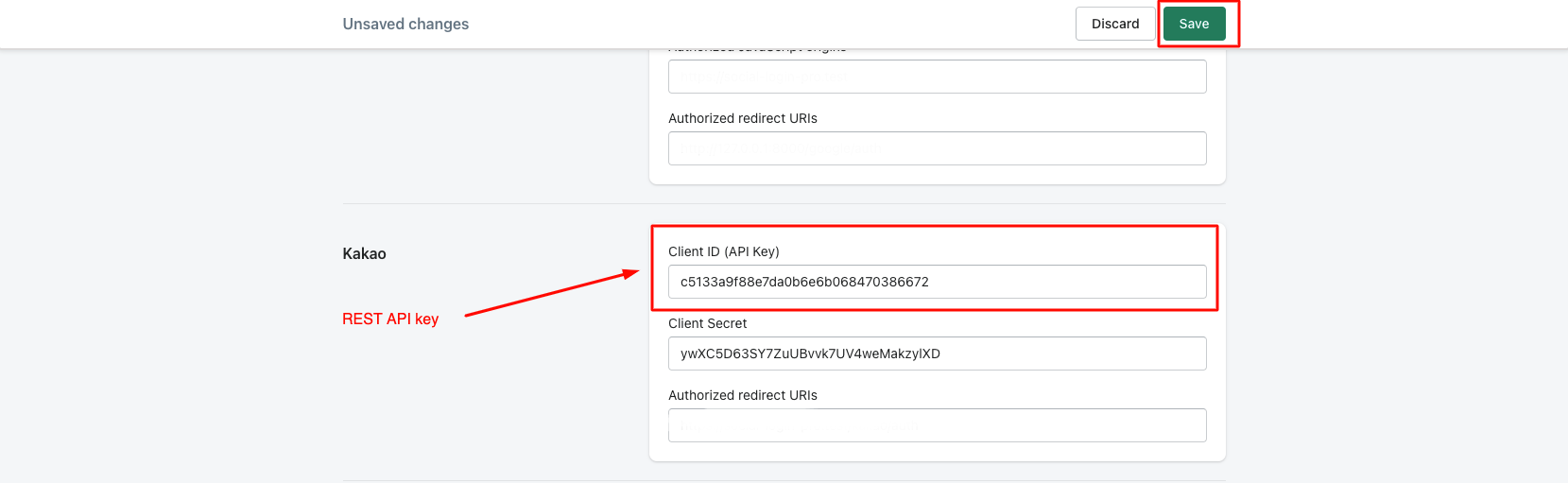
Paste the REST API key as Client ID (API Key) in the Kakao section, then save.
17
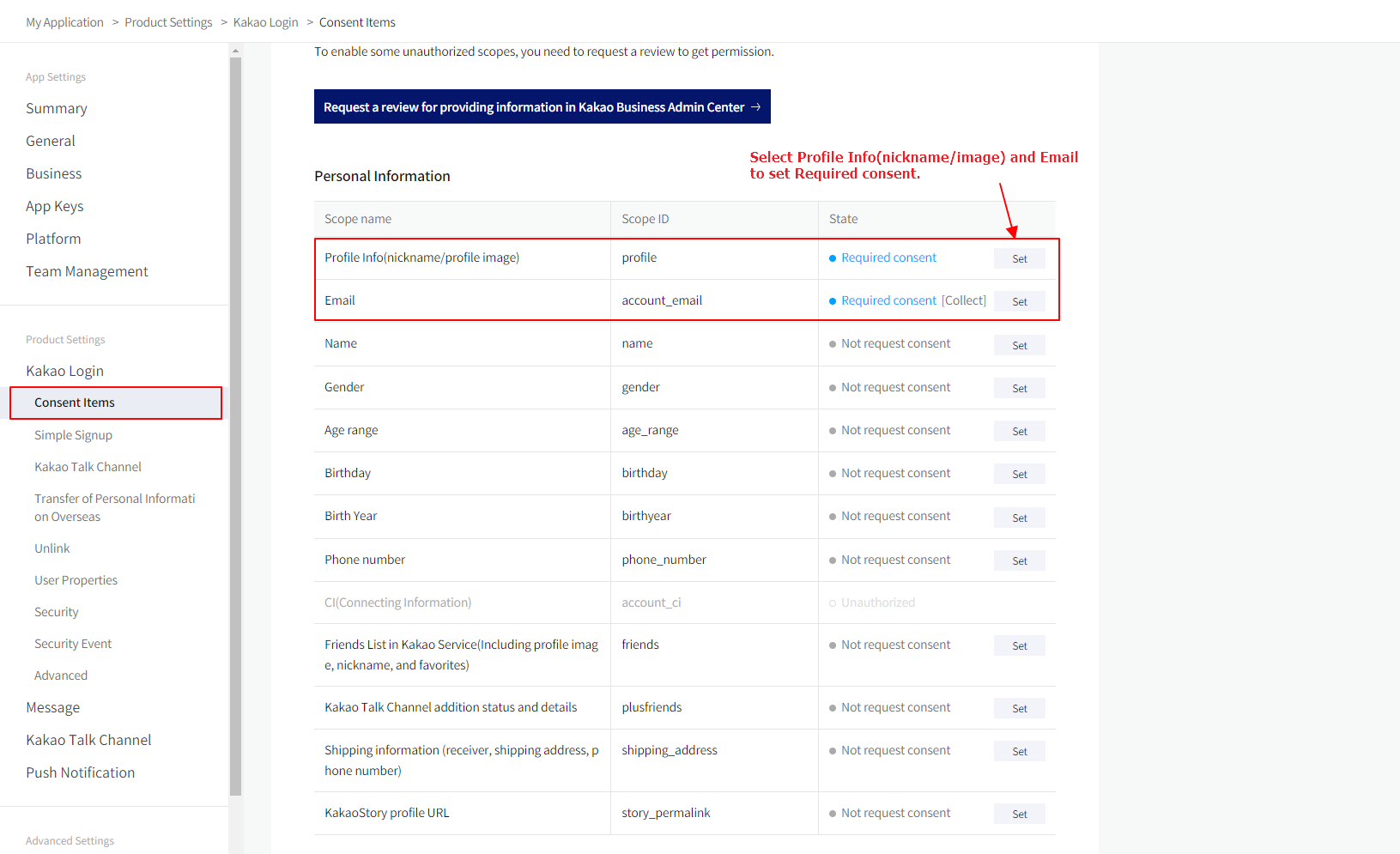
Go to Consent Items and set the required permissions.
- Profile Info (nickname/profile image): Set to Required
- Email (Kakao Account): Set to Required
Verify the Integration
- Check that the Kakao button appears on your storefront login page
- Test login with a Kakao account to ensure it works correctly
- Verify the Kakao login record appears in your Shopify customer list
FAQ
What if I don't configure Consent Items?
Without setting Email and Profile Info as required, login will appear to work but user information cannot be retrieved, so the integration will not function properly.
My Redirect URI is not working.
Make sure the URL is exactly https://shopidreamapps.com/kakao/auth. No trailing spaces or slashes.