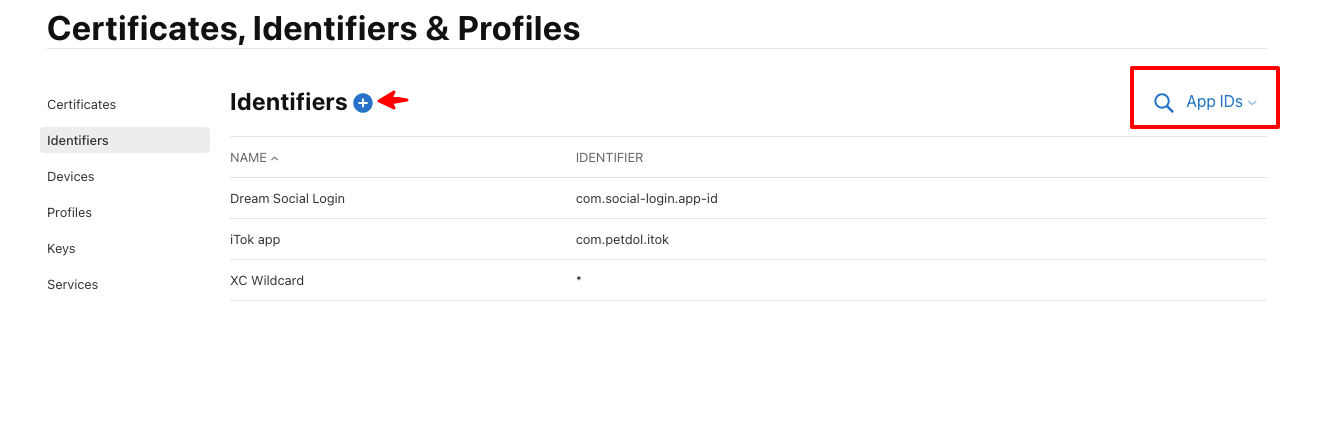
Sign in to the Apple Developer portal and open Certificates, Identifiers & Profiles.
Apple Login Setup Guide
Learn how to enable Apple Login in the Dream Social Login app.
📋
Before You Begin
Have your Apple Developer details ready: Team ID, Service ID, Key ID, and private key (.p8 file).
Overview
Apple Login lets shoppers authenticate with their Apple ID for a faster, privacy-focused experience. Everything you need — Apple credentials, activation toggle, and button styling — is managed directly inside the Dream Social Login app settings.
Enter Apple Credentials
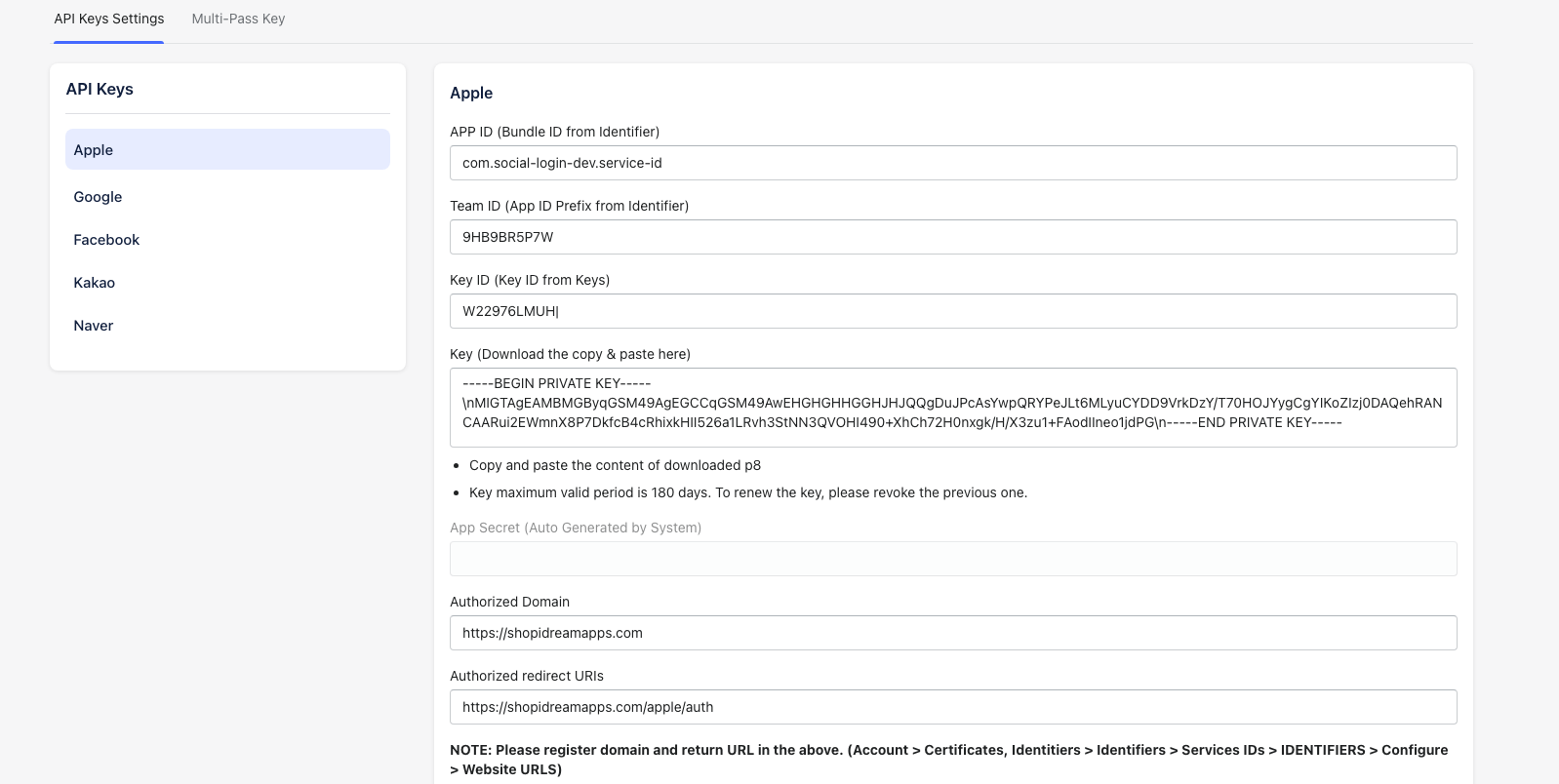
In the Dream Social Login app, go to Settings → API Keys → Apple and enter the following:
- APP ID — Your Services ID
e.g. com.yourbrand.login - Team ID — The Team ID listed in your Apple Developer membership
- Key ID — The identifier for the private key you created for Sign in with Apple
- Private Key — Paste the full contents of your downloaded .p8 key file
- Redirect URL —
https://shopidreamapps.com/apple/auth
The Dream Social Login system automatically generates the Apple client secret from the details above. No manual token creation is needed.
Apple Developer Portal Setup Steps
1
2
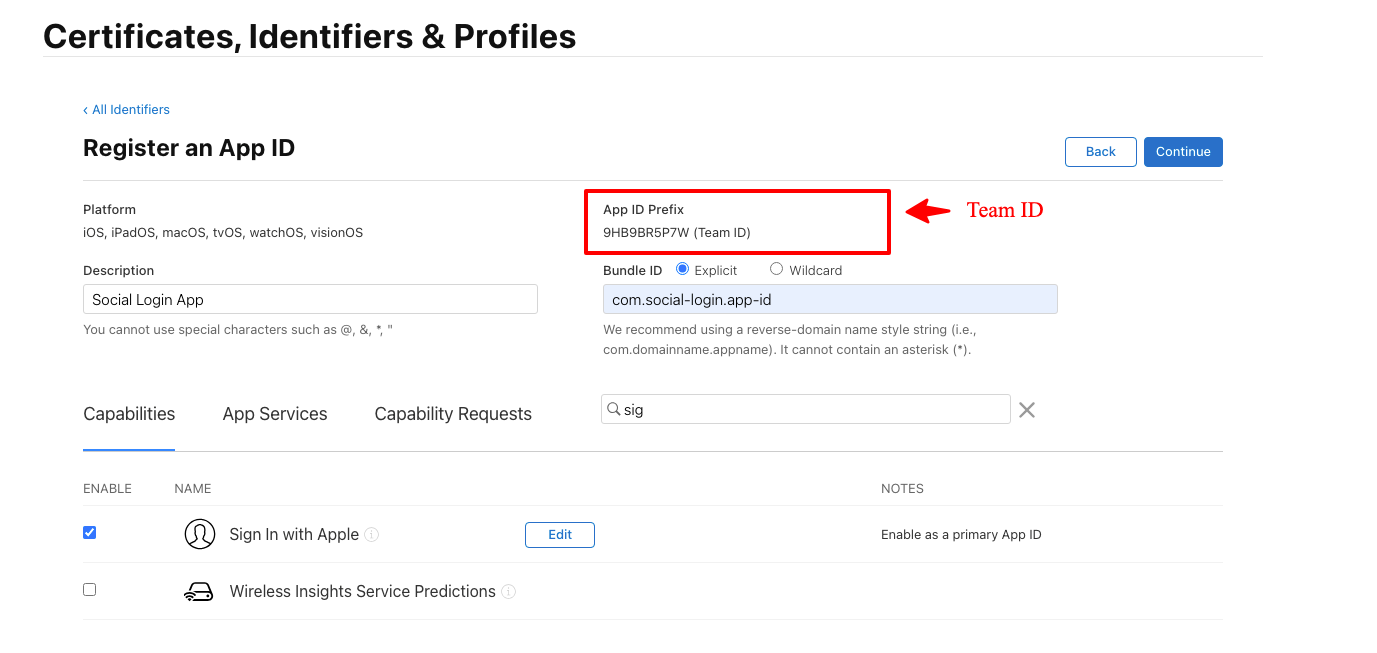
Click Identifiers, create a new App ID, and enable Sign In with Apple.
This page also displays your Team ID.
3
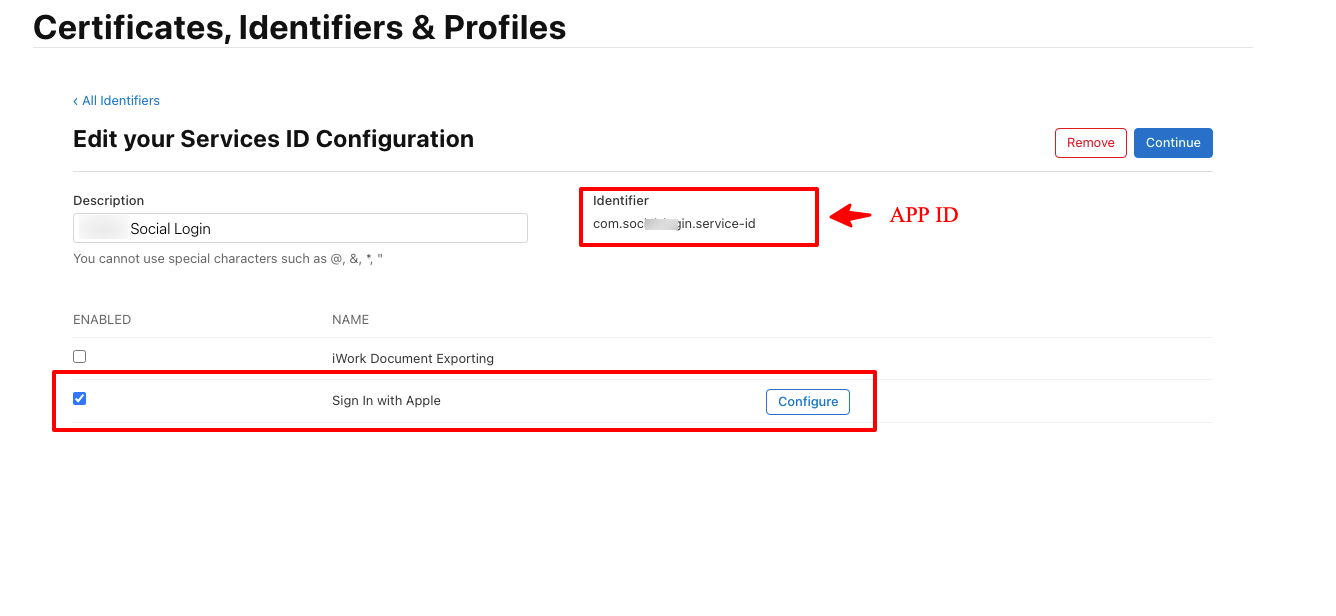
Create a new Service ID. This value becomes the APP ID in your Shopify app settings.
Enable Sign In with Apple and click Configure.
4
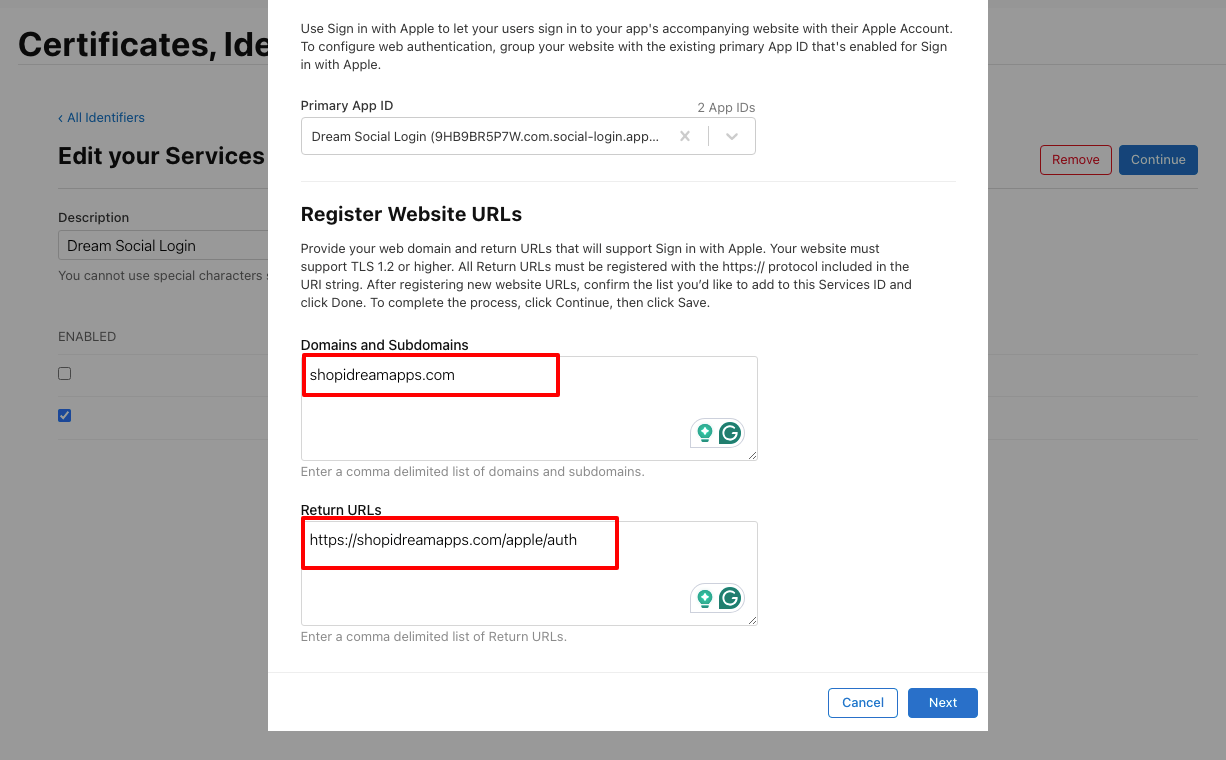
Set the Primary App, domain, and Return URL.
- Primary App: Select the App ID from Step 2
- Domain: shopidreamapps.com
- Return URL:
https://shopidreamapps.com/apple/auth
Save your changes.
5
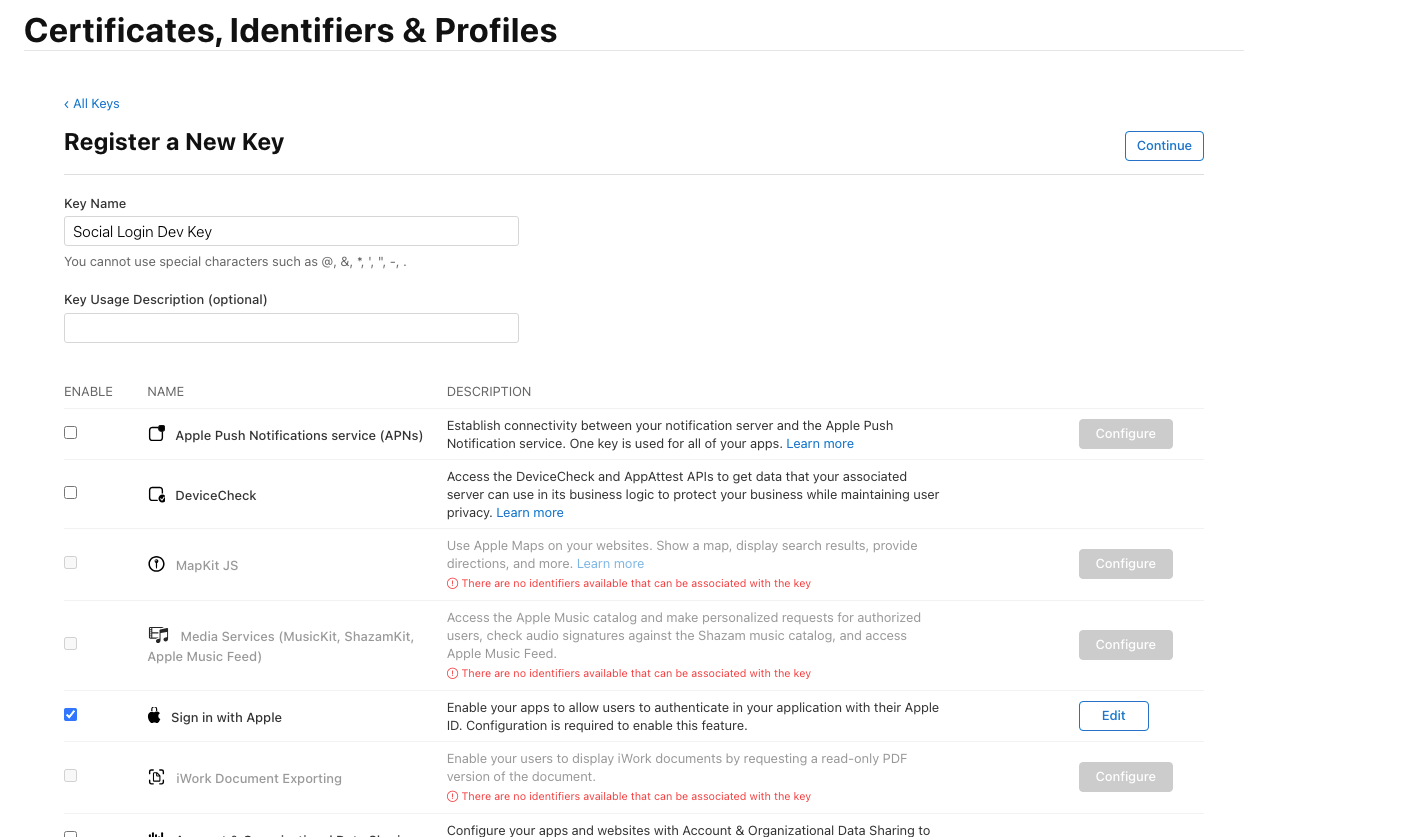
Go to Keys and register a new key.
Enable Sign In with Apple and click Configure.
6
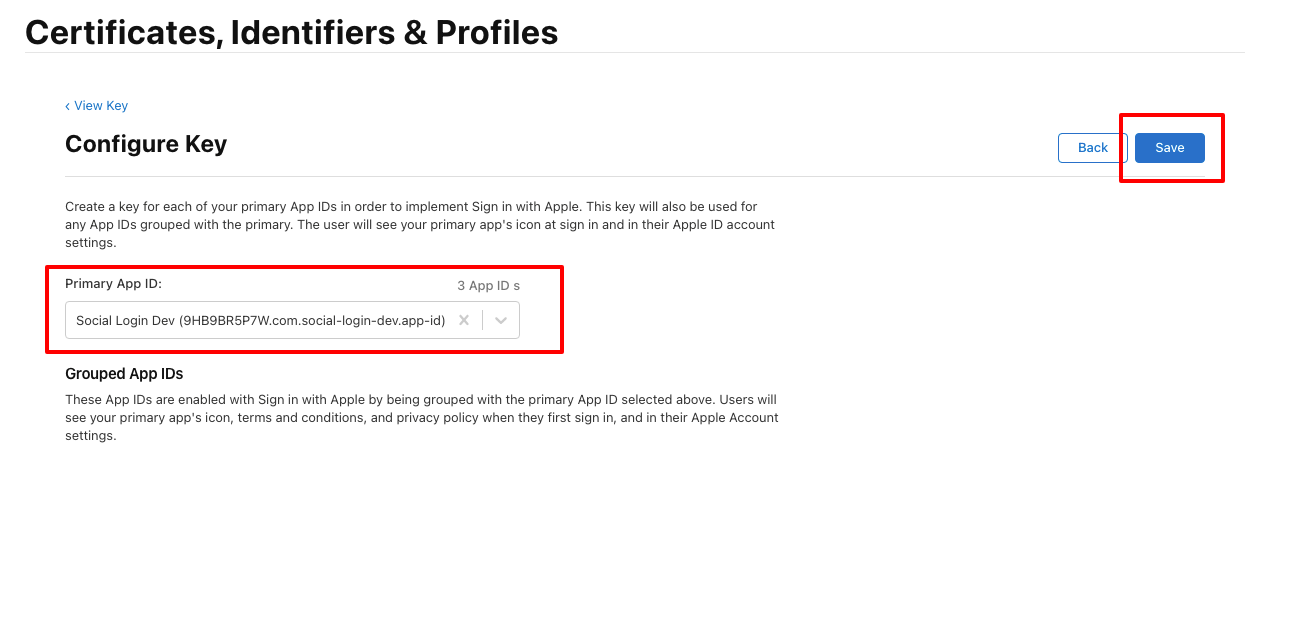
Select the same Primary App, then click Save and Continue.
7
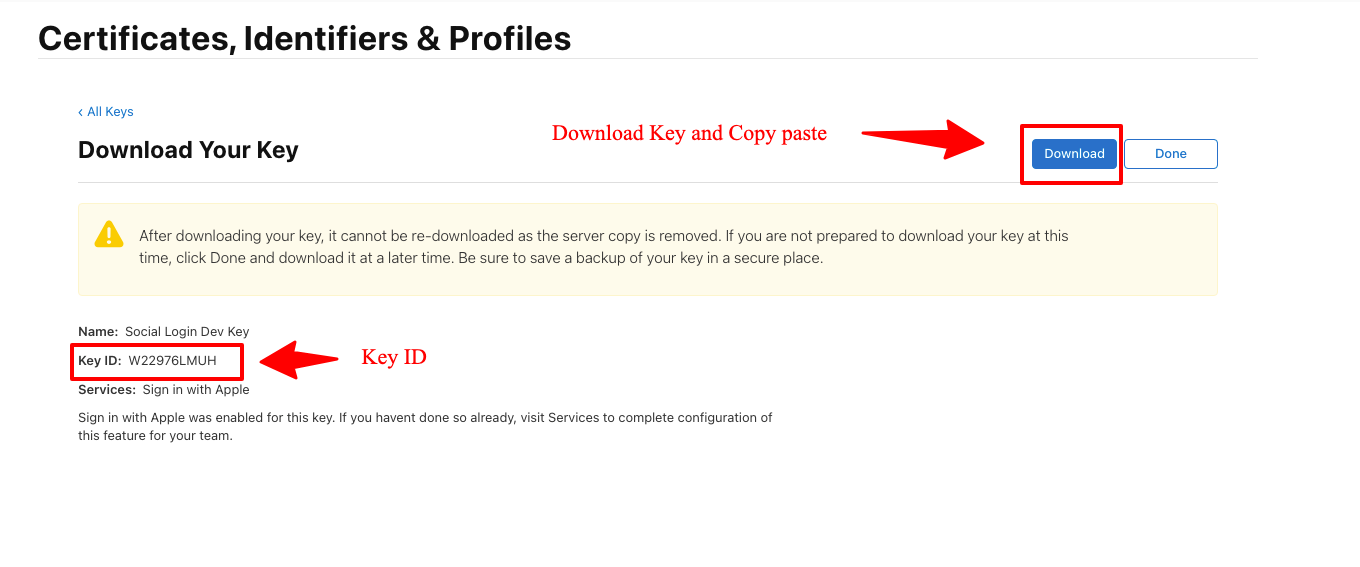
Download the private key file (.p8) and note the Key ID.
The .p8 file can only be downloaded once — store it in a safe location.
8
Open Dream Social Login → API Keys → Apple. Paste all collected values and save.
Verify the Integration
- Open your storefront login page and confirm the Apple button appears
- Sign in with an Apple ID to ensure the redirect completes correctly
- Check Shopify customer records to verify Apple login displays in the customer timeline
FAQ
Do I need to renew the client secret?
No manual action is required. The Dream Social Login system generates and refreshes the Apple client secret for you.
What if I use multiple domains?
Add each domain to the allowed return URLs in your Services ID configuration. Match the Redirect URL per environment.
The button appears but login fails.
Double-check the Apple credentials you entered. If any value has changed in the Apple Developer portal, update the matching field and save again.