Go to the Google API Console Credentials page.
Google Login Setup Guide
Learn how to enable Google Login in the Dream Social Login app.
📋
Before You Begin
You need a Google Cloud account. If you don't have one yet, sign up at Google Cloud Console first.
Overview
Google Login allows customers worldwide to sign in quickly with their Google account. All required information (Client ID, Client Secret) is issued at Google Cloud Console and entered into the app.
Enter Google Credentials
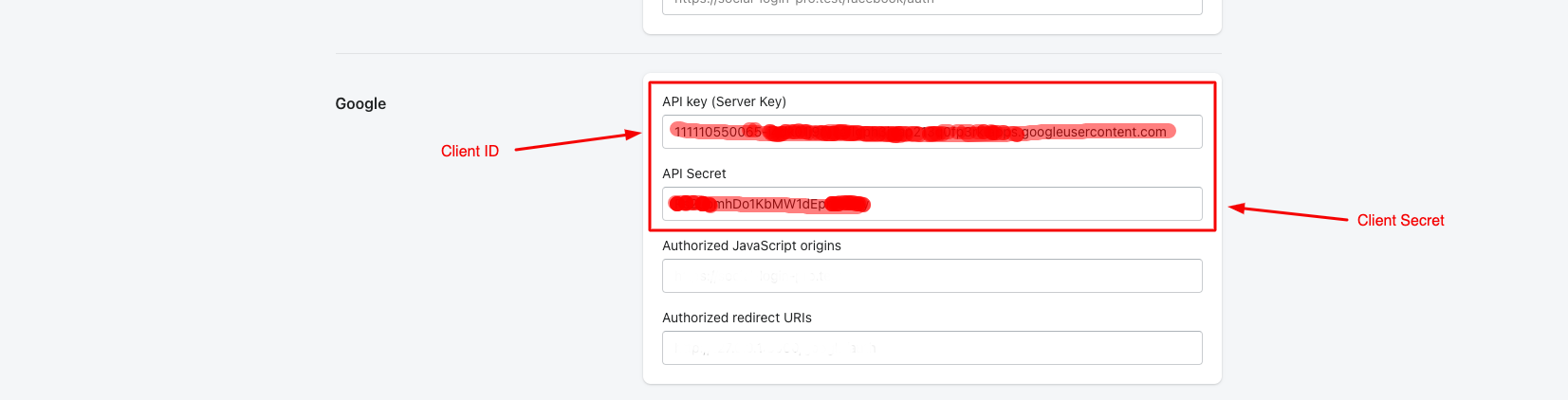
In the Dream Social Login app, go to Settings → API Keys → Google and enter the following:
- Client ID — OAuth Client ID from Google Cloud Console
- Client Secret — Client Secret from Google Cloud Console
- Authorized JavaScript origins —
https://shopidreamapps.com - Authorized redirect URIs —
https://shopidreamapps.com/google/auth
Both URLs must match exactly. Trailing slashes or spaces will cause failures.
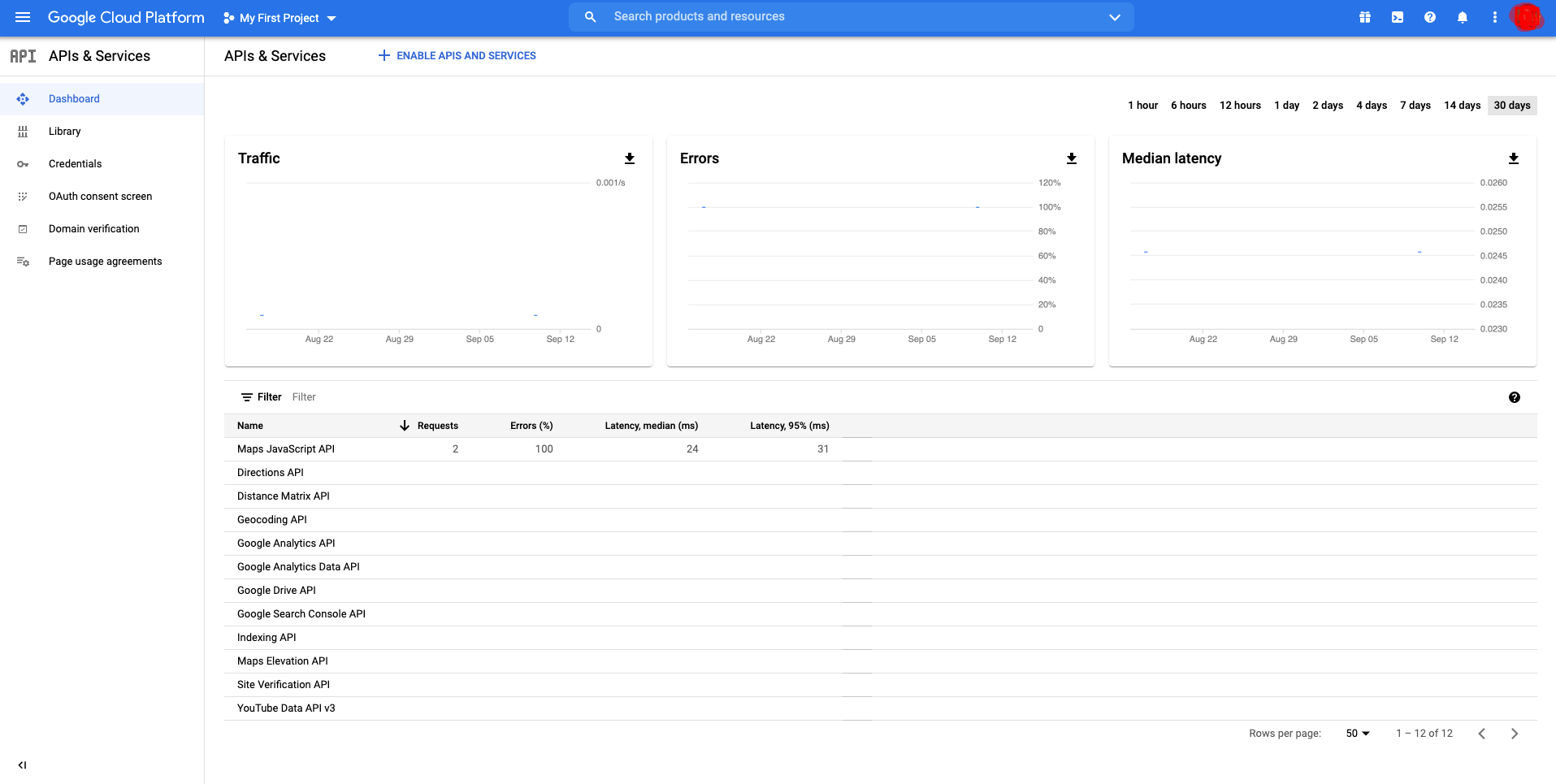
Google Cloud Console Setup Steps
1
2
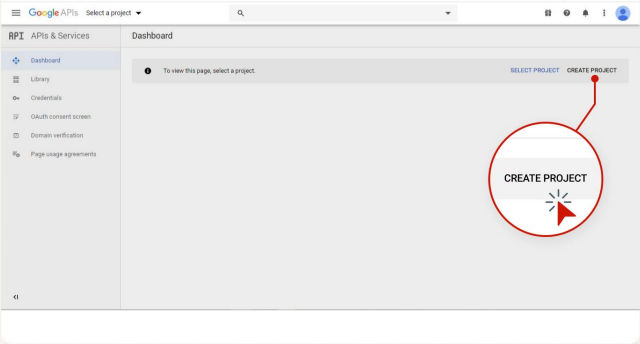
Click CREATE PROJECT.
3
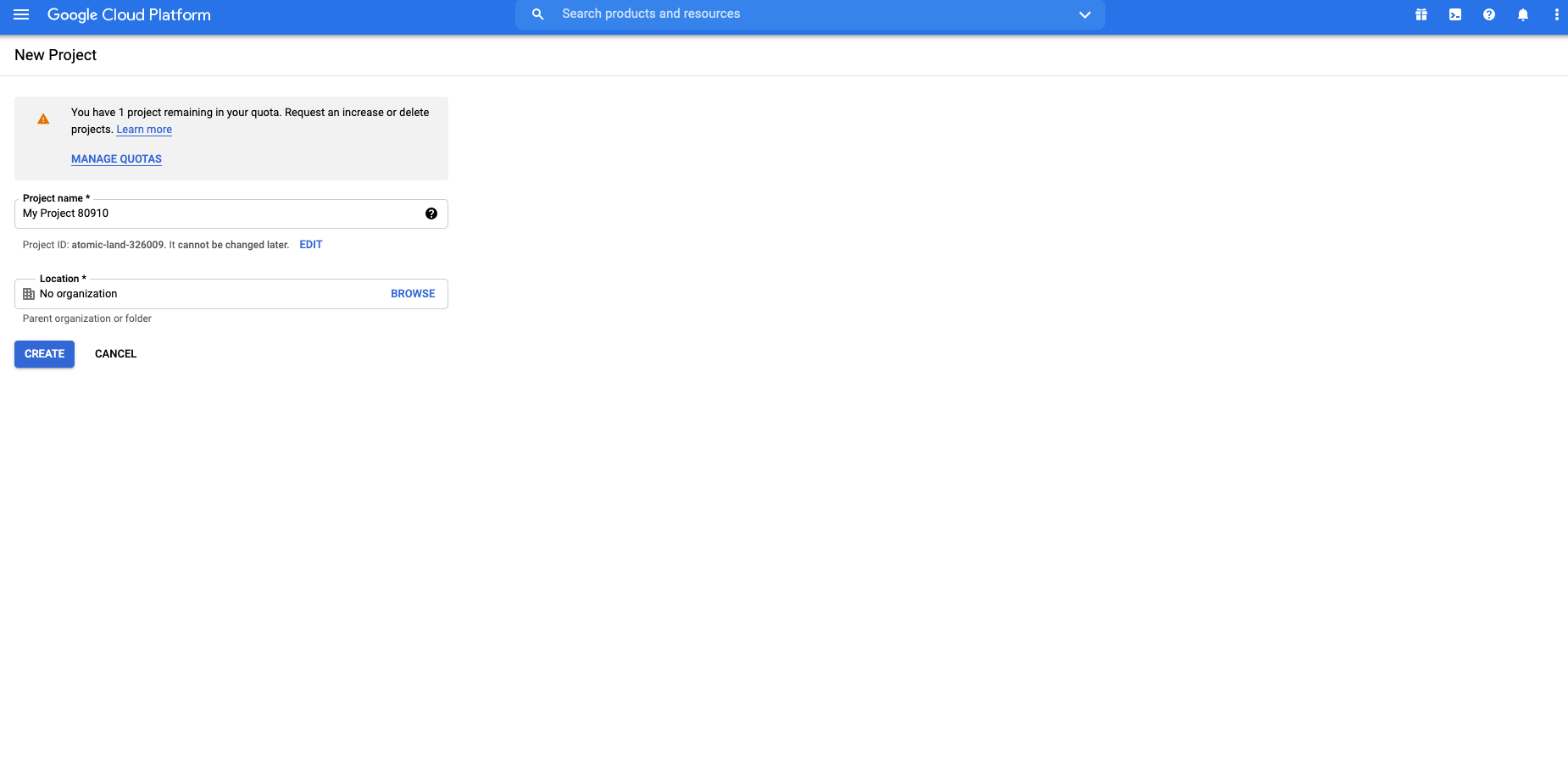
The new project creation page opens.
4
Type your app name and click Create.
5
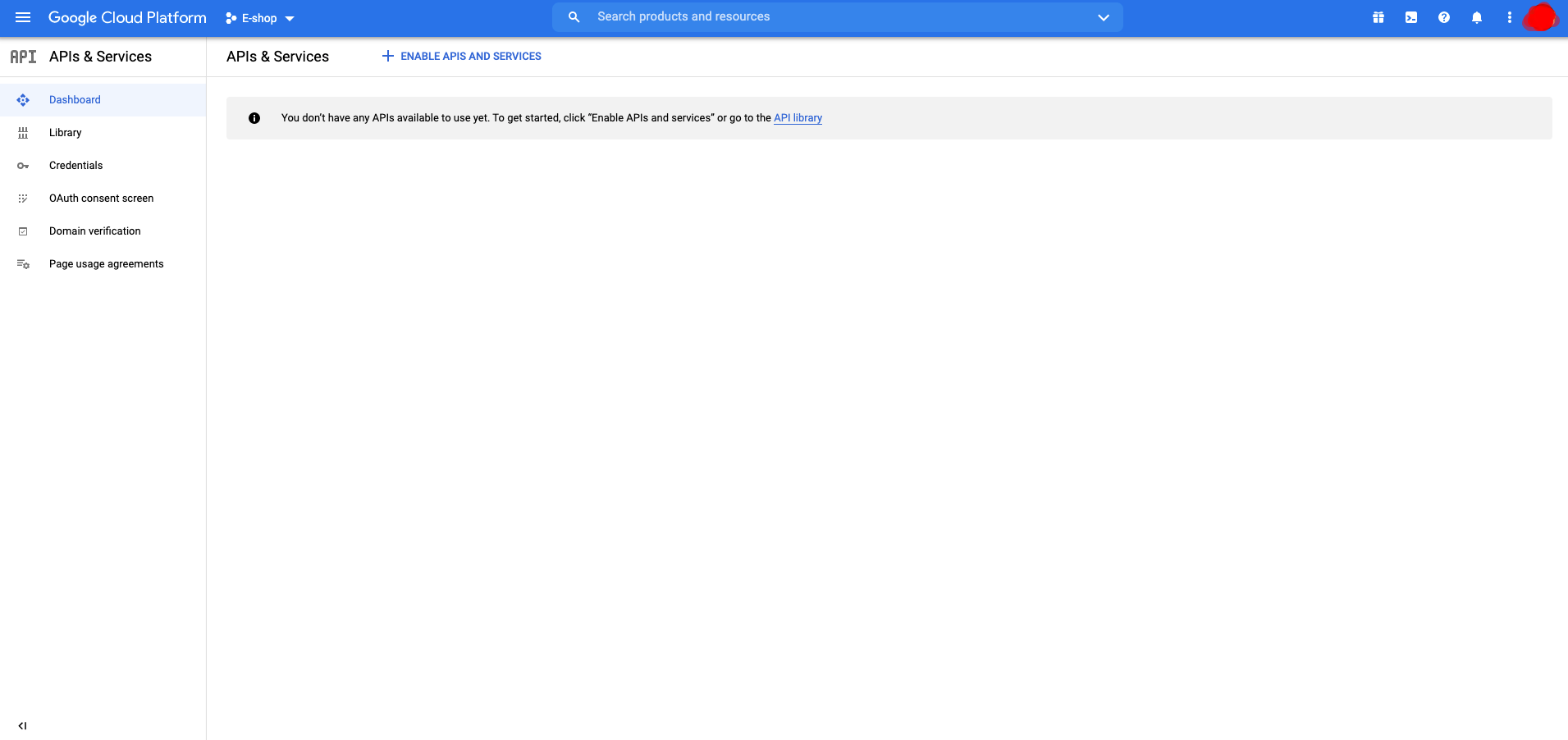
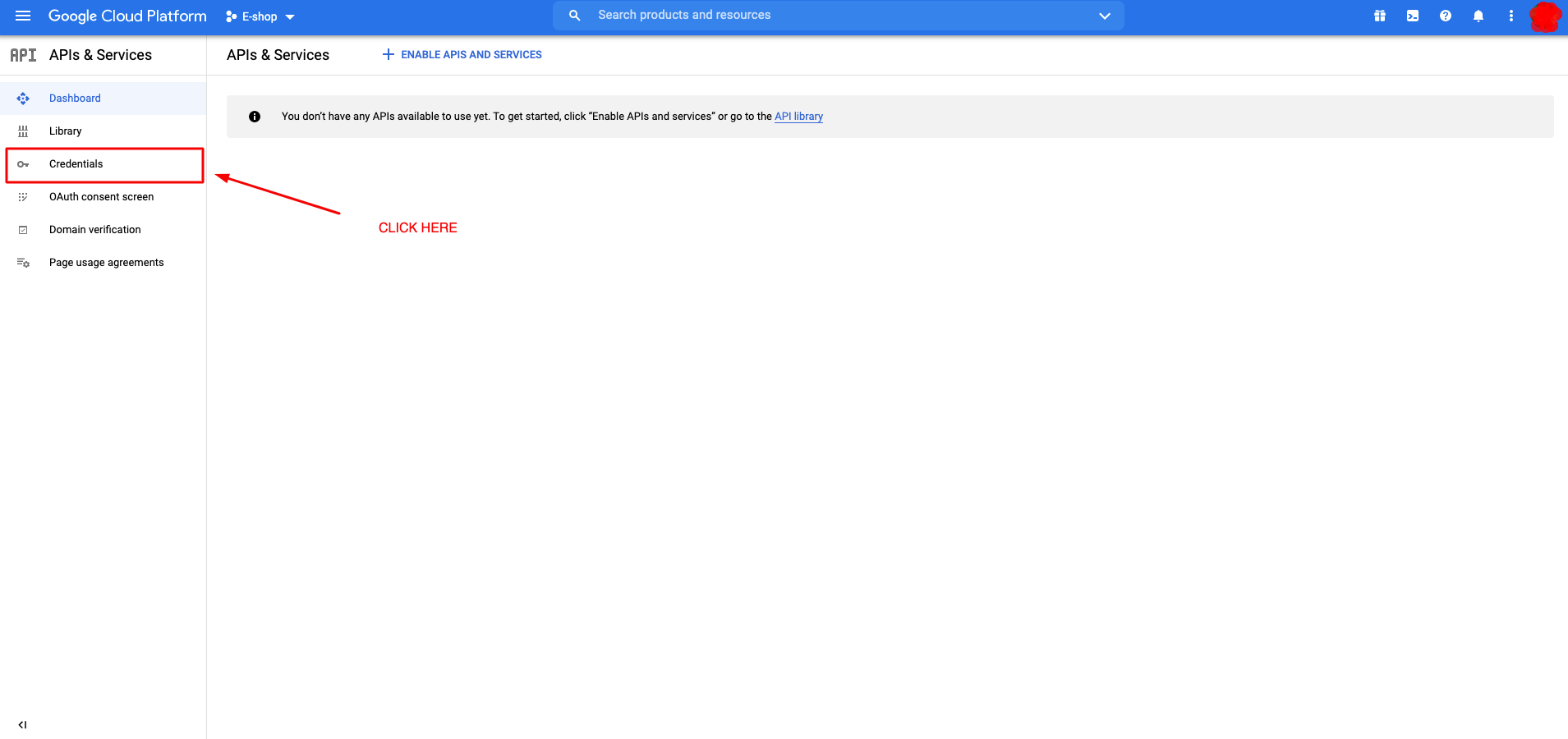
Go to the Credentials page.
6
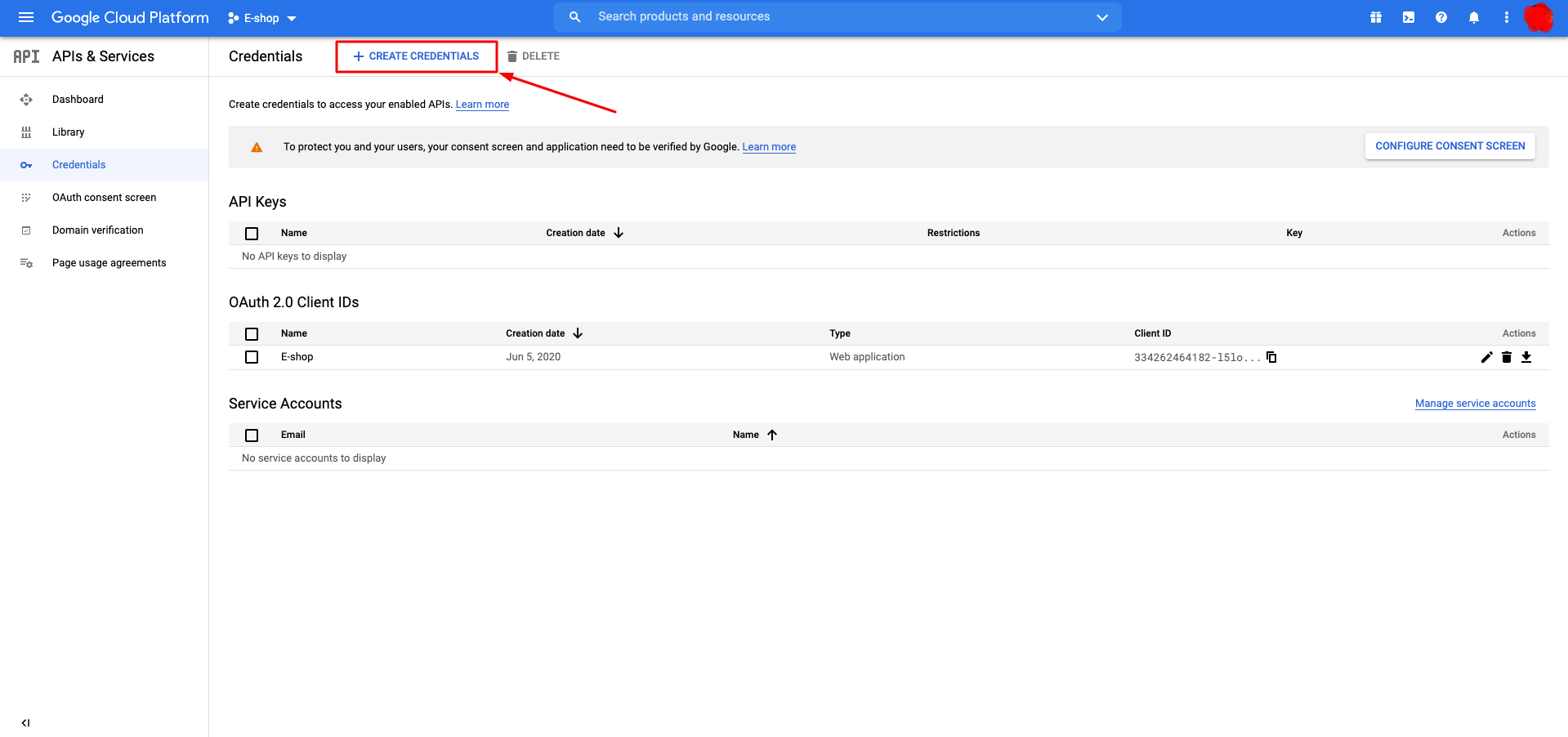
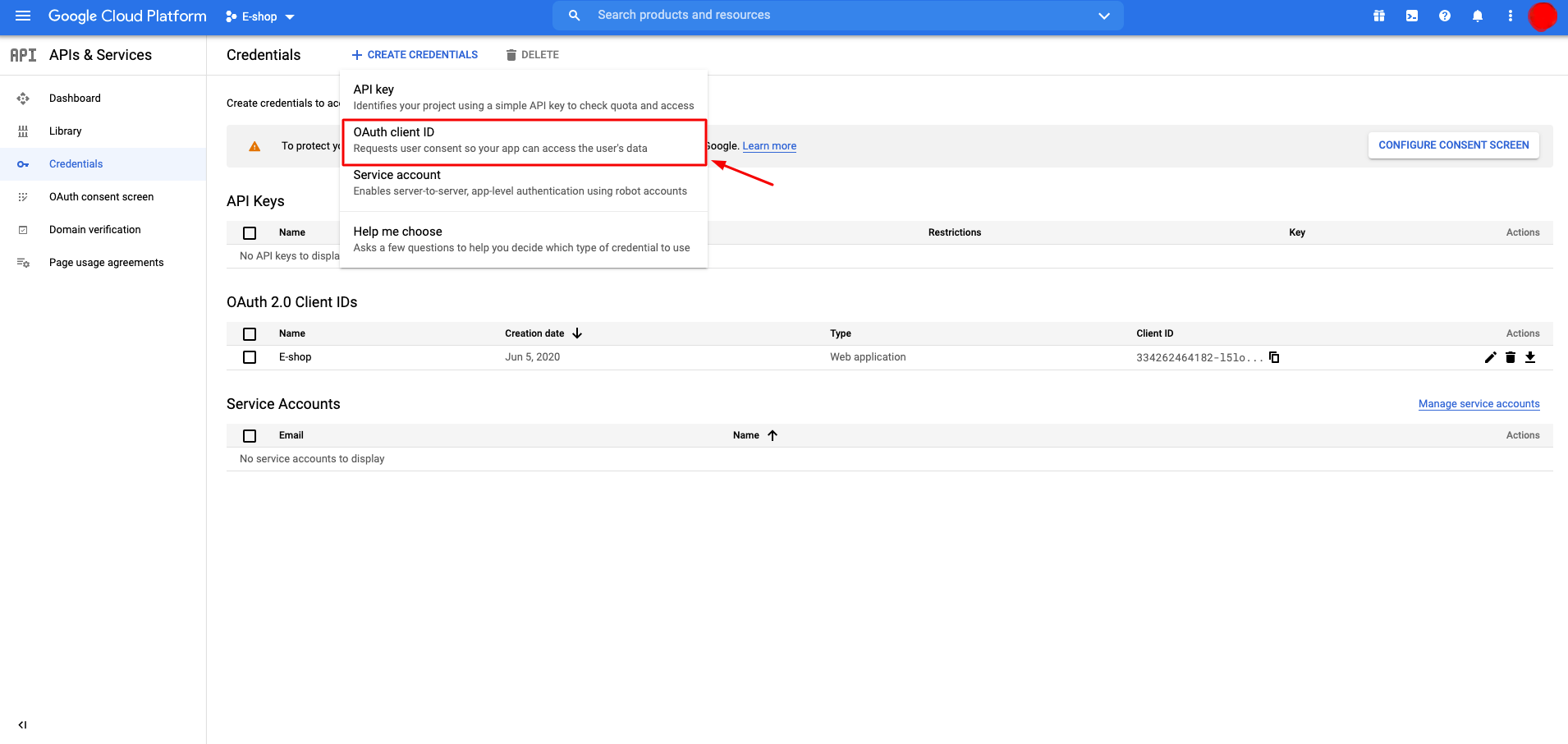
Select Create credentials → OAuth client ID.
7
Define a product name on the OAuth consent screen.
8
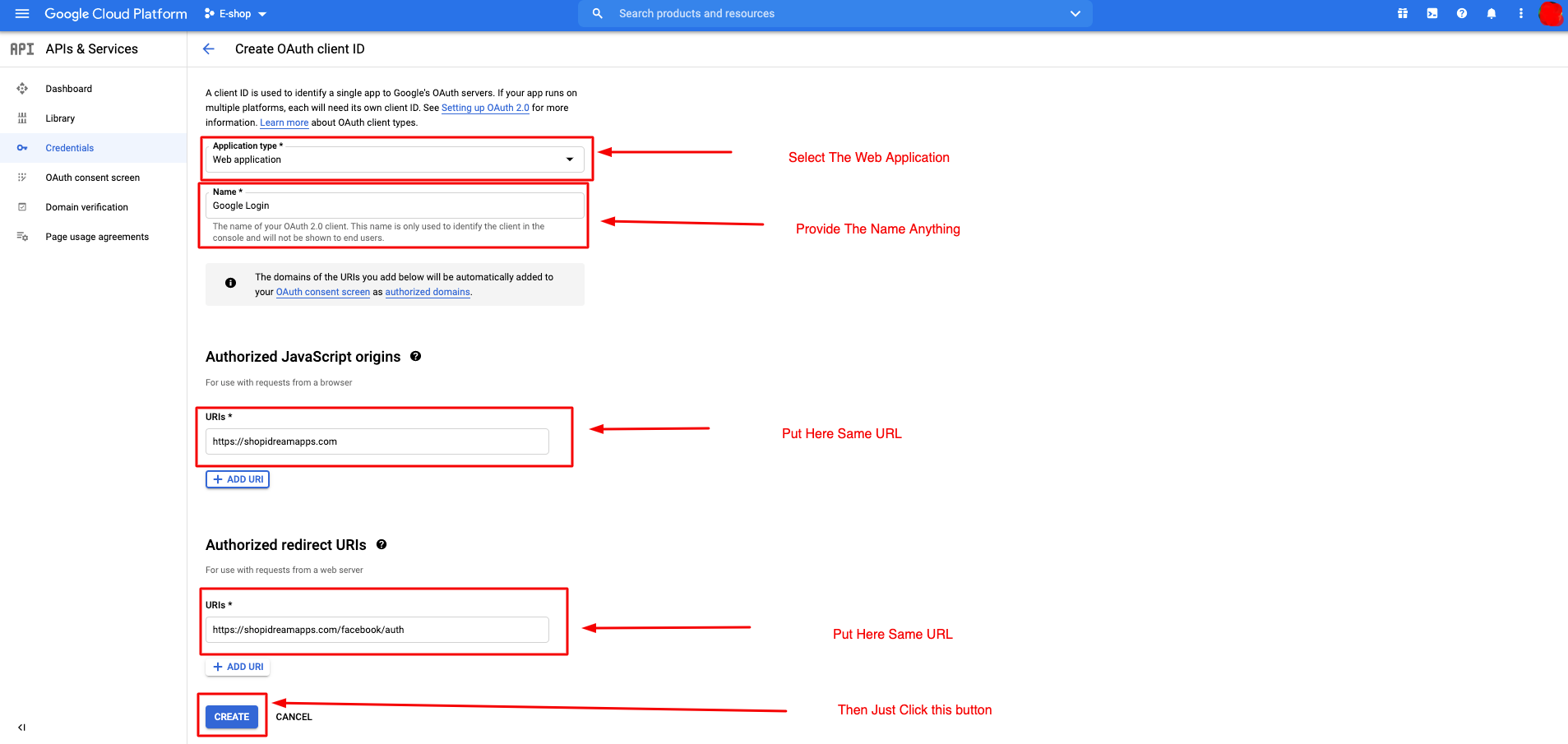
Configure the OAuth Client ID form.
- Application type: Web Application
- Name: Google Login
- Authorized JavaScript origins:
https://shopidreamapps.com - Authorized redirect URIs:
https://shopidreamapps.com/google/auth
Click Create when done.
9
View your Client ID and Client Secret.
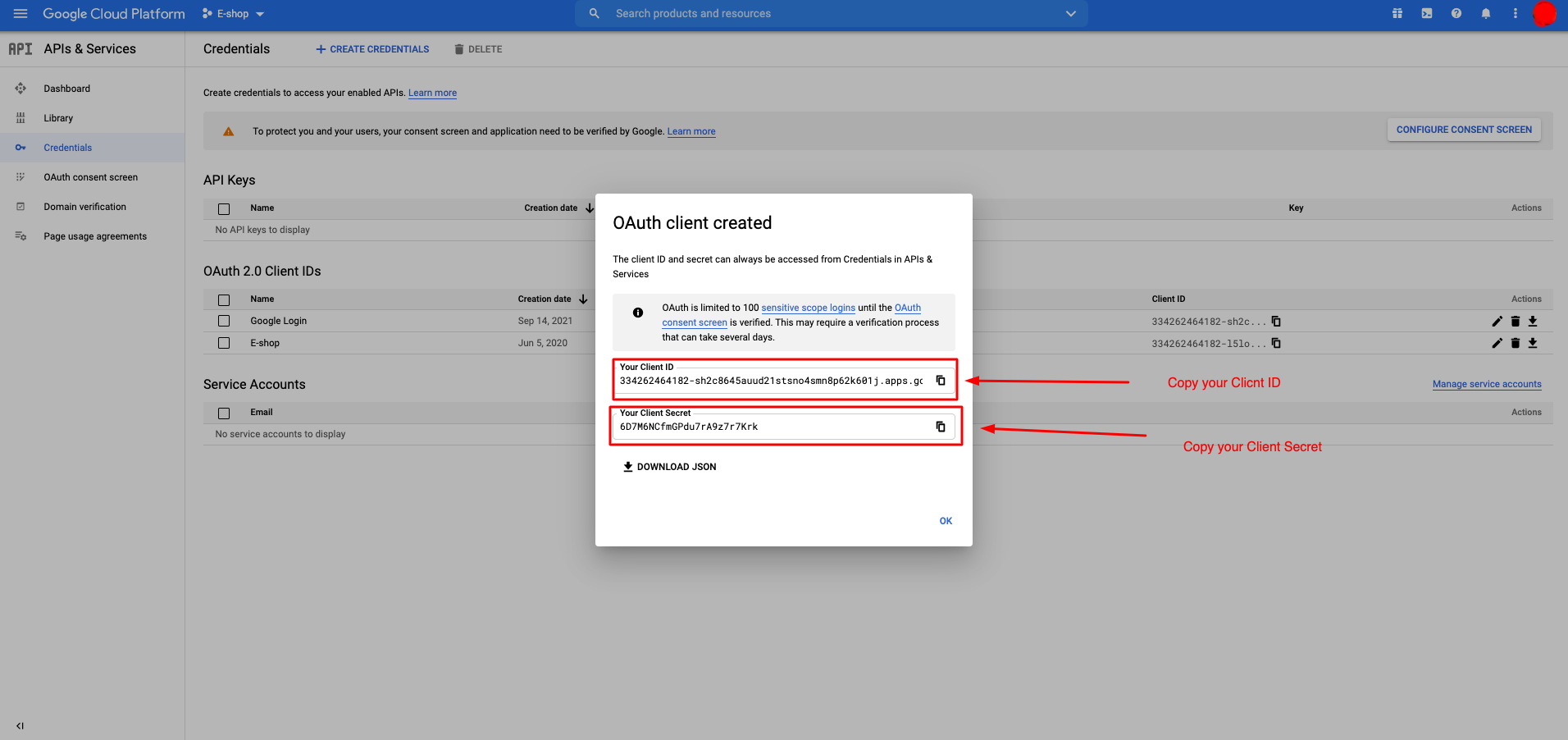
10
Copy Client ID and Client Secret into Shopify Dream Social Login → API Keys → Google, then save.
Verify the Integration
- Check that the Google button appears on your storefront login page
- Test login with a Google account to ensure it works correctly
- Verify the Google login record appears in your Shopify customer list
FAQ
Do I need to verify the OAuth consent screen?
For basic information (email, profile), no review is required.
Do I need to enter the JavaScript origins and Redirect URIs precisely?
Yes, both URLs must match exactly. Trailing slashes or spaces will cause authentication failures.