Sign in to the LINE Developers Console and navigate to the Providers section.
LINE Login Setup Guide
Learn how to enable LINE Login in the Dream Social Login app.
📋
Before You Begin
You need a LINE Developers account. If you don't have one yet, create a Provider and Channel following LINE's setup instructions.
Overview
LINE Login allows customers in regions where LINE is popular (such as Japan) to sign in quickly with their LINE account. All required information (Channel ID, Channel Secret) is issued at the LINE Developers Console and entered into the app.
Enter LINE Credentials
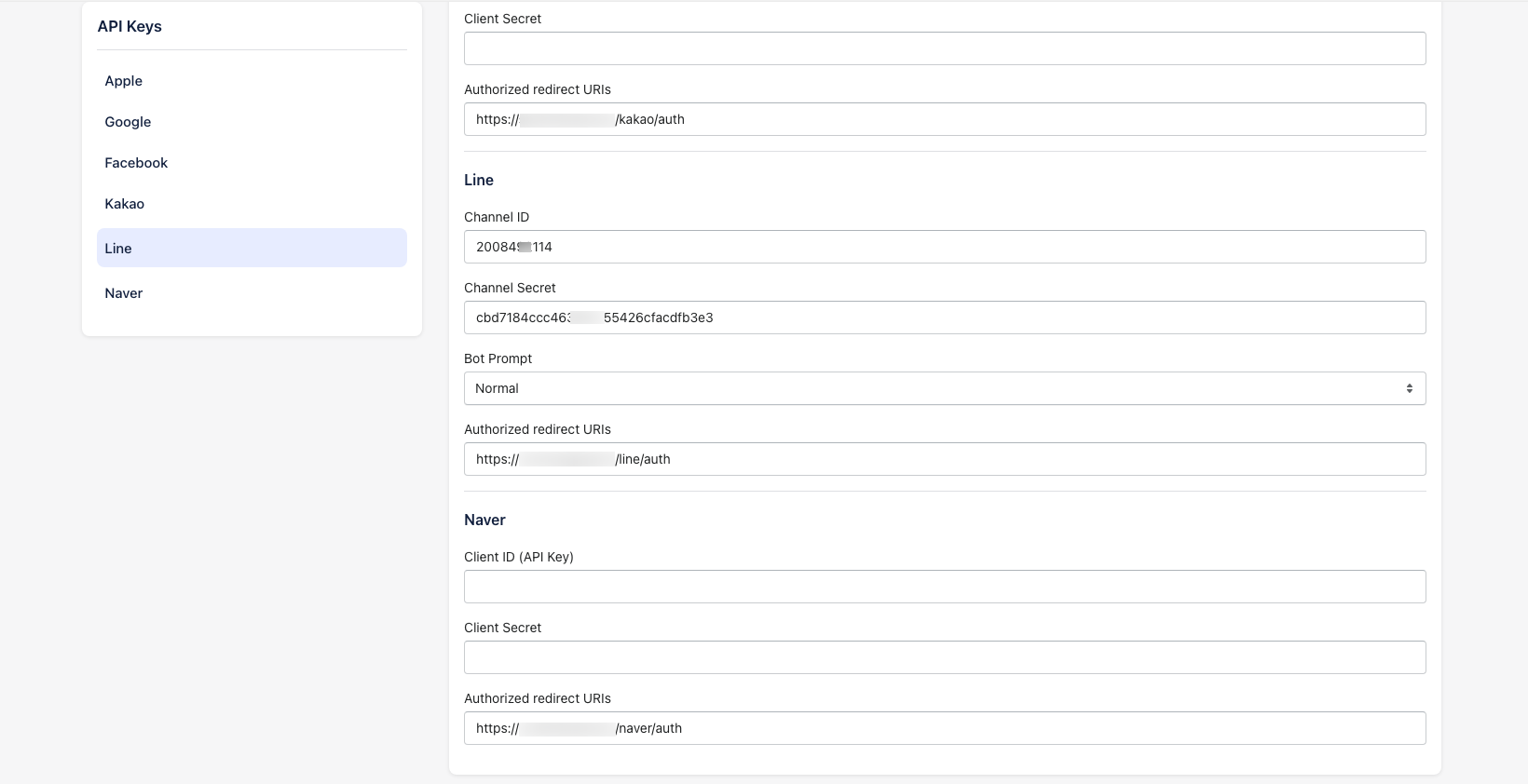
In the Dream Social Login app, go to Settings → API Keys → LINE and enter the following:
- Channel ID — LINE Login Channel ID
- Channel Secret — Channel Secret key
- Authorized redirect URIs —
https://shopidreamapps.com/line/auth - Bot Prompt — Choose whether to display the bot addition prompt during login (normal or aggressive)
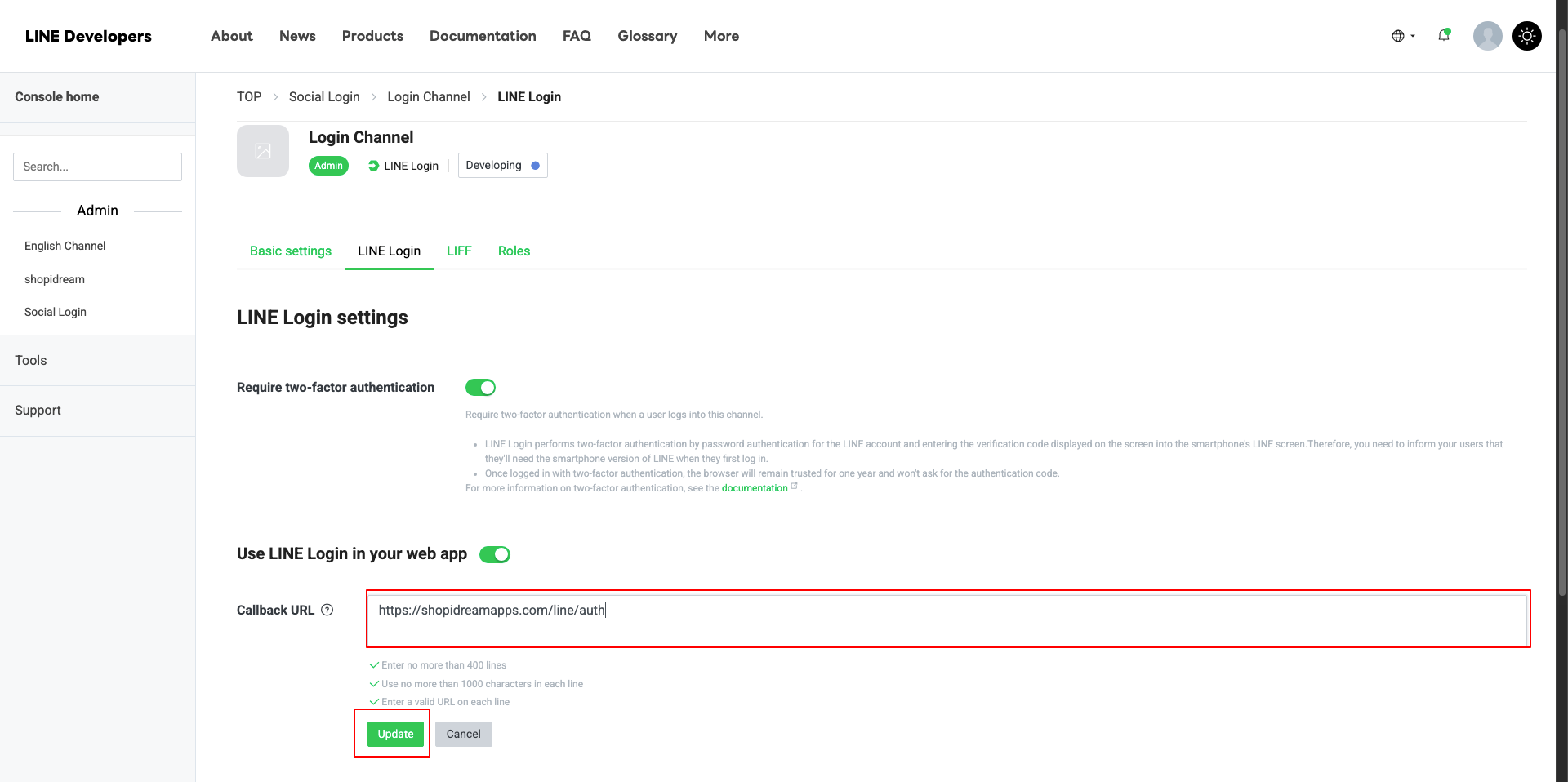
Make sure to add the redirect URI to your LINE channel's authorized redirect URIs list. This is required for the authentication flow to work properly.
LINE Developers Console Setup Steps
1
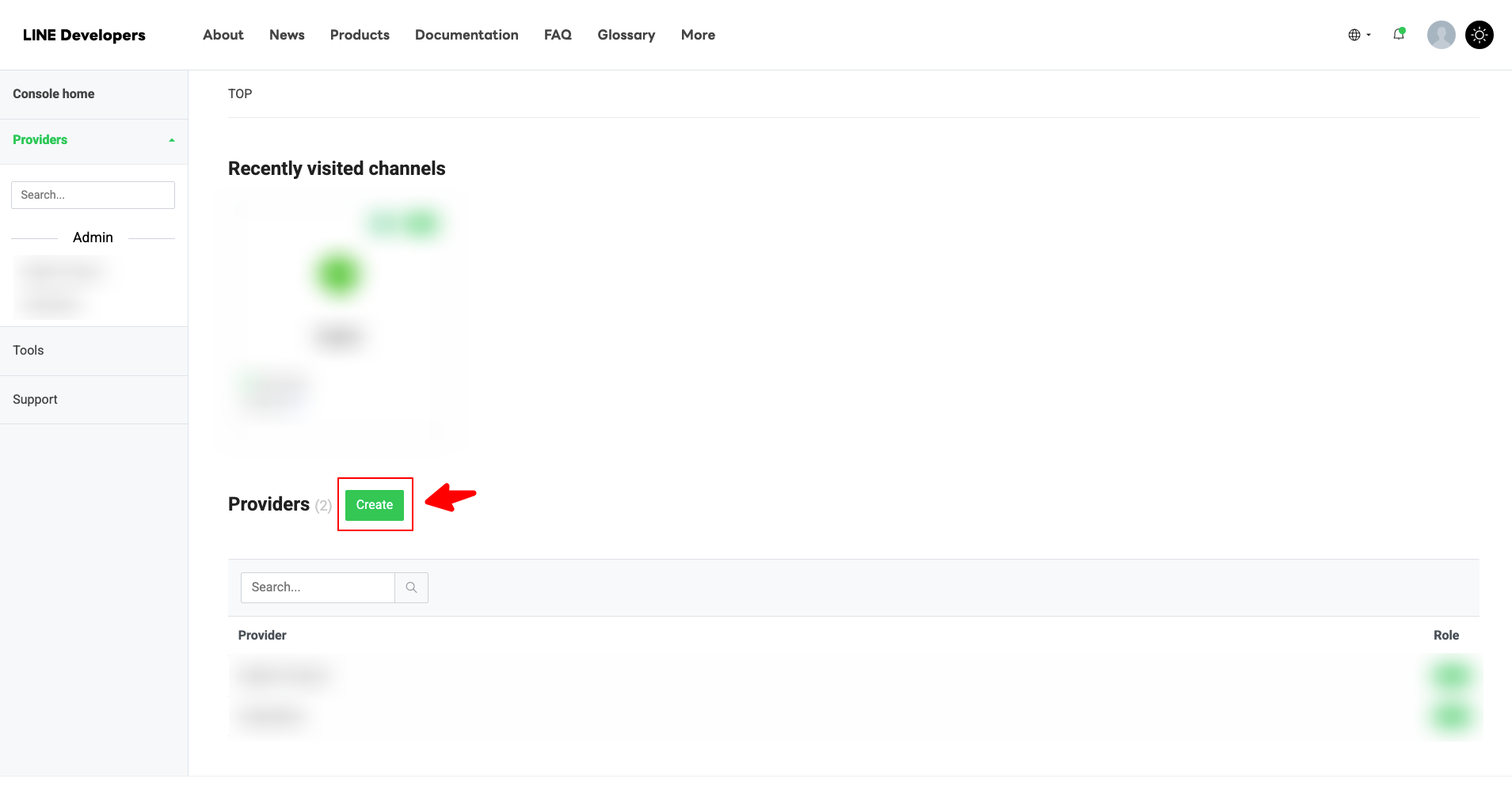
2
Create a new Provider or select an existing one.
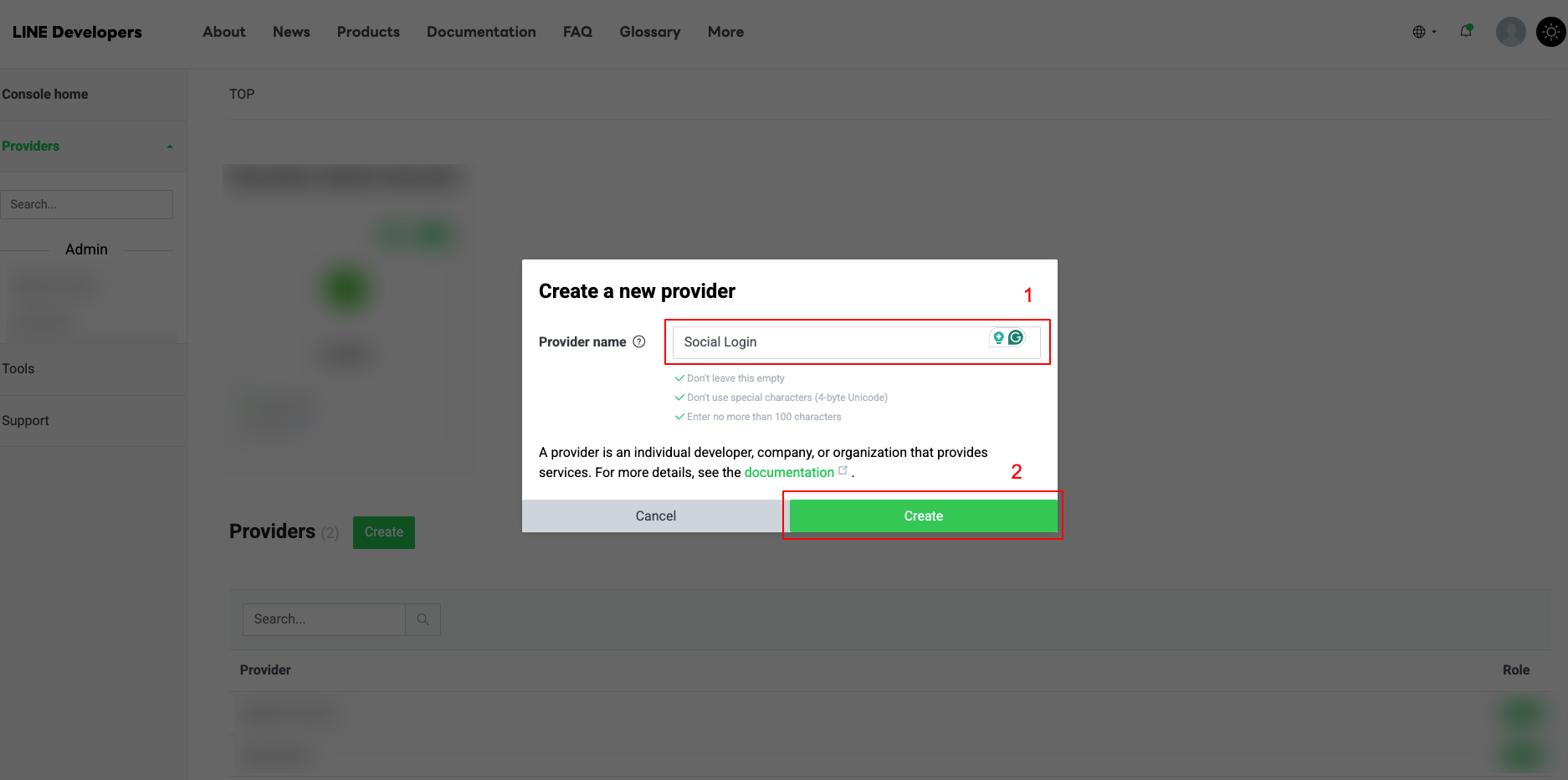
3
Create a new LINE Login channel within your Provider.
Select LINE Login as the channel type.
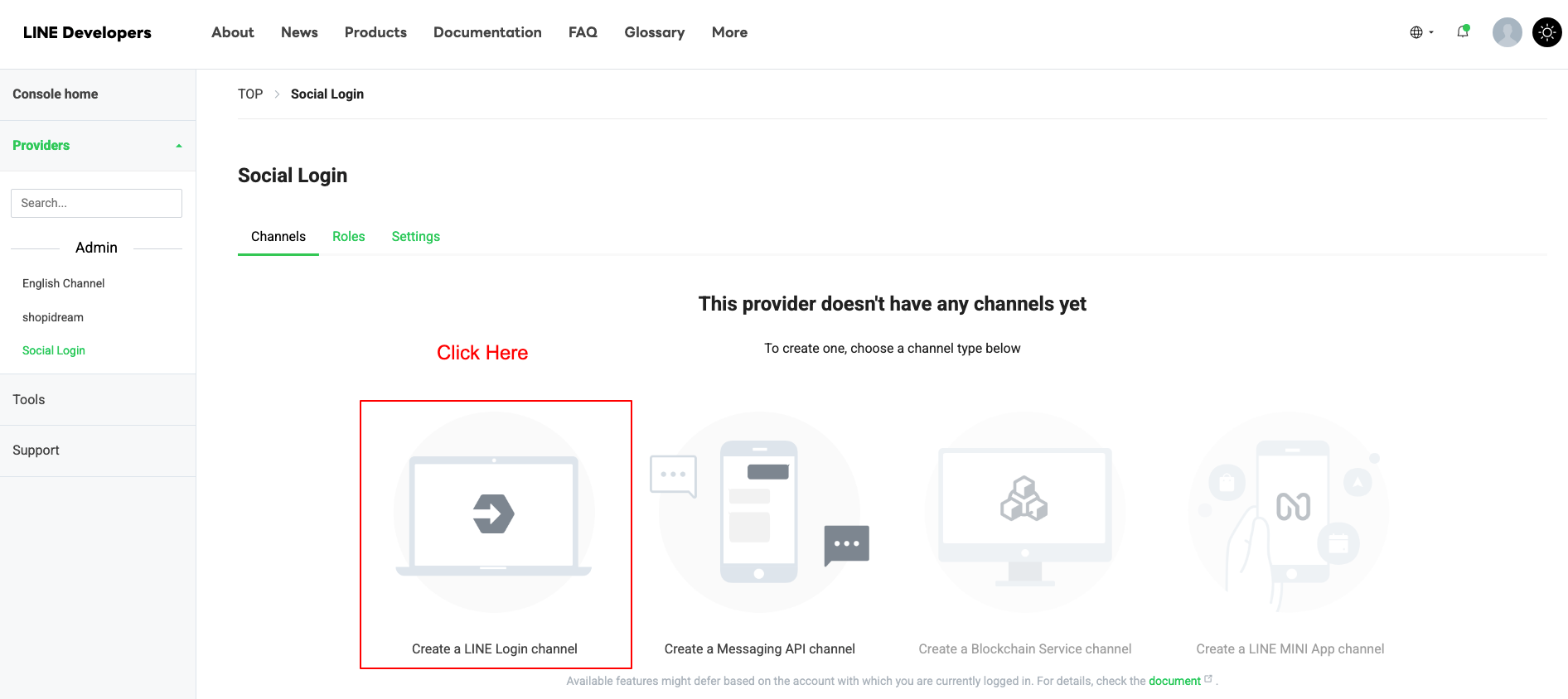
4
Fill in the required information (channel name, description, etc.) and click Create or Save.
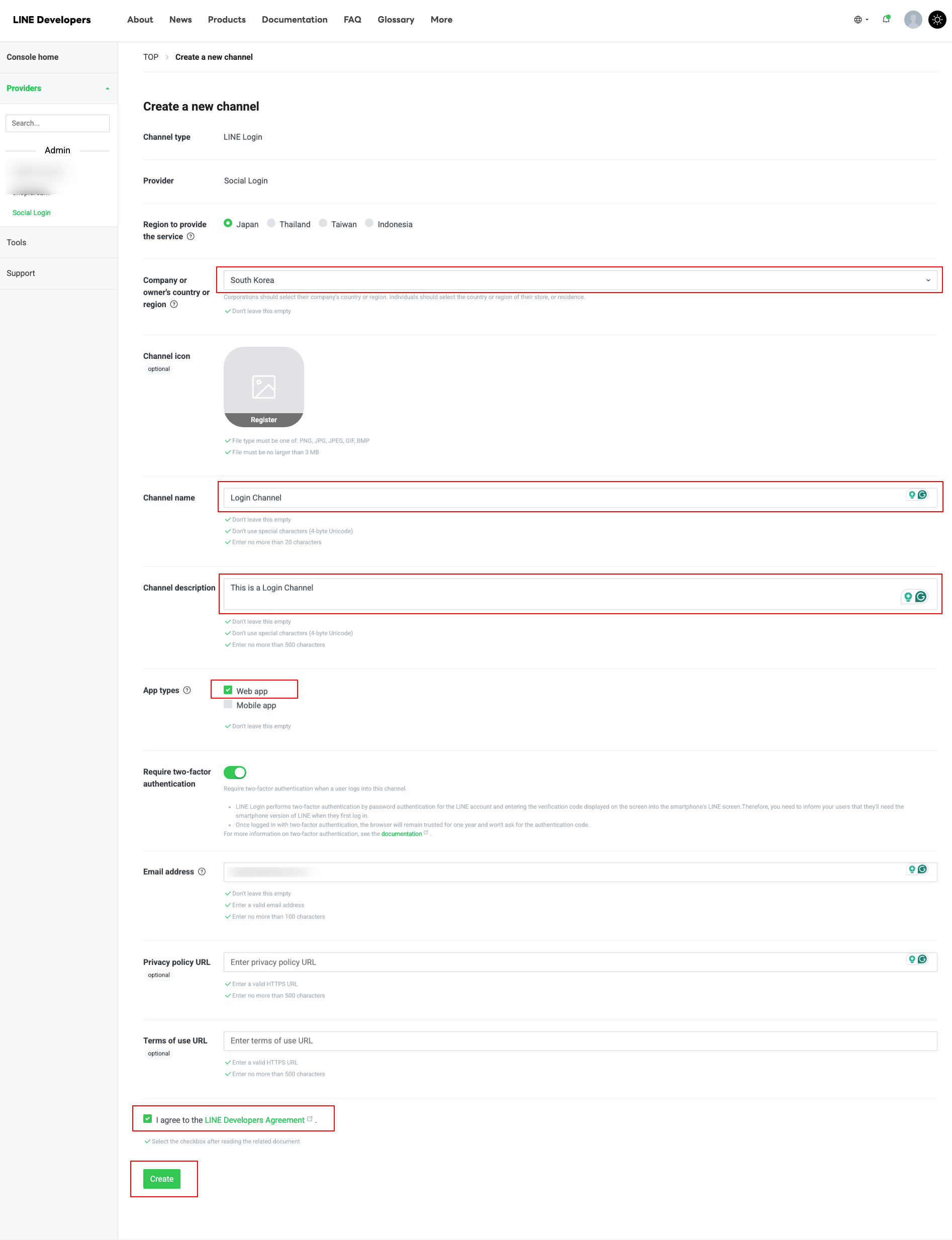
5
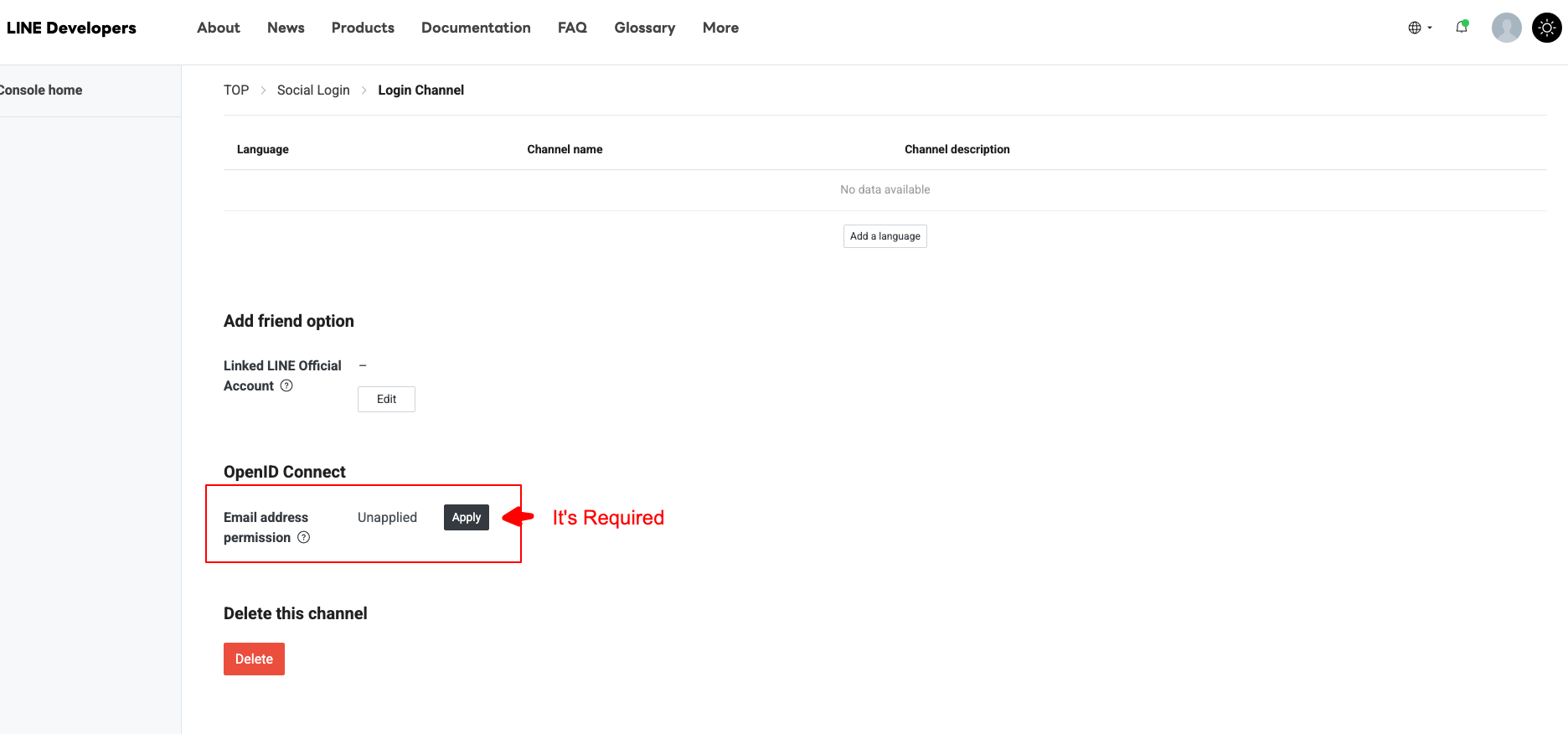
Enable Email address permission for the channel.
6
Add the Auth Callback URL to your channel's authorized redirect URIs list.
https://shopidreamapps.com/line/auth
7
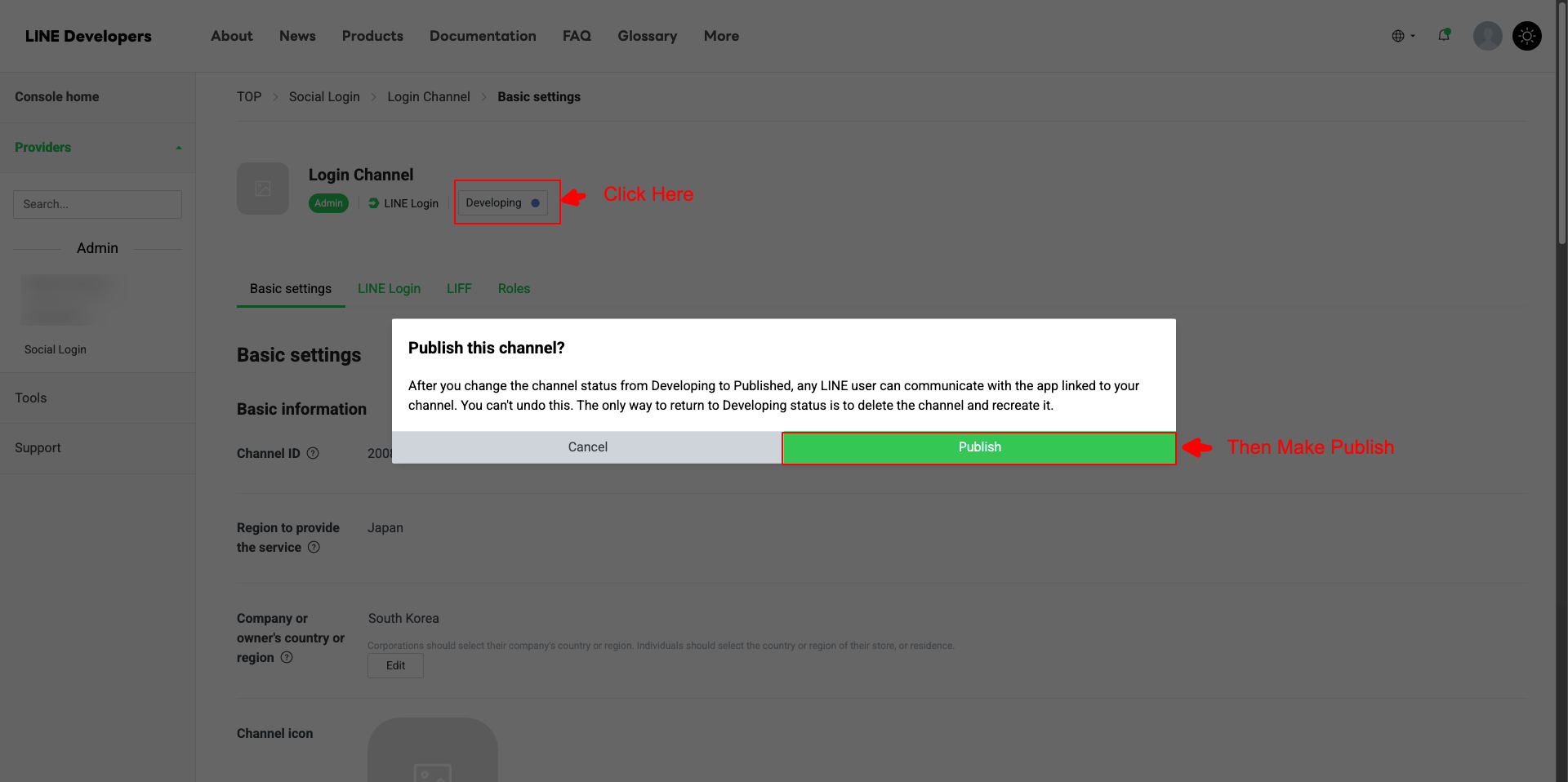
Publish the channel to make it active.
8
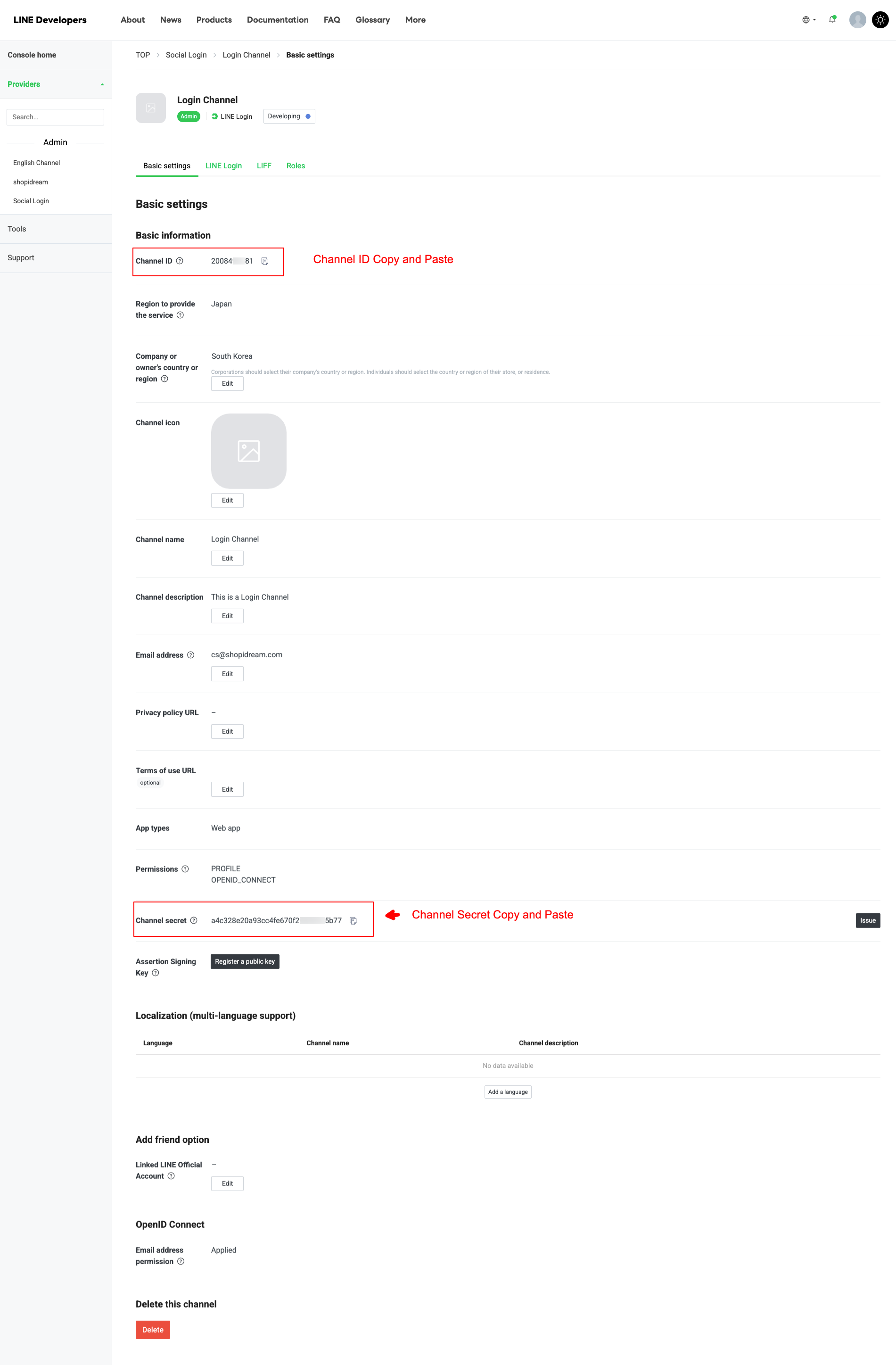
Copy the Channel ID and Channel Secret.
9
Open Dream Social Login → API Keys → LINE. Paste the credentials and save.
Verify the Integration
- Open your storefront login page and confirm the LINE button appears
- Sign in with a LINE account to ensure the redirect completes correctly
- Check Shopify customer records to verify LINE login displays in the customer timeline
FAQ
What is the Bot Prompt setting?
It controls whether users are prompted to add your LINE Official Account as a friend during login. Normal shows the prompt only when appropriate; aggressive always shows it.
What if I use multiple domains?
Add each domain's redirect URI to the authorized redirect URIs list in your LINE channel settings.
The button appears but login fails.
The most common cause is a mismatch between the redirect URI in the LINE Developers Console and the app settings. They must match exactly.
Where can I find my Channel ID and Channel Secret?
Both values are available in your LINE Login channel settings in the LINE Developers Console.